How to Allocate Dynamic Events to Users on the Roster
Create records of custom entity types — like coffee breaks or vehicle checks — and place them on the scheduler roster against a specific carer.
Once you've created a custom entity type — such as a Coffee Break, Vehicle Check, or Support Session Note — you can create records of that type and assign them to a carer on the roster. These records appear alongside standard bookings on the scheduler board and on the carer's mobile app.
What is a dynamic event?
A dynamic event is a record created from a custom entity type that appears on the roster. Unlike standard bookings, dynamic events carry whatever fields you defined when you set up the entity type.
For example, if you created a "Coffee Break" entity type with fields for location and duration, each coffee break record is a dynamic event that can be placed on the roster against a specific carer and time.
Creating a record and placing it on the roster
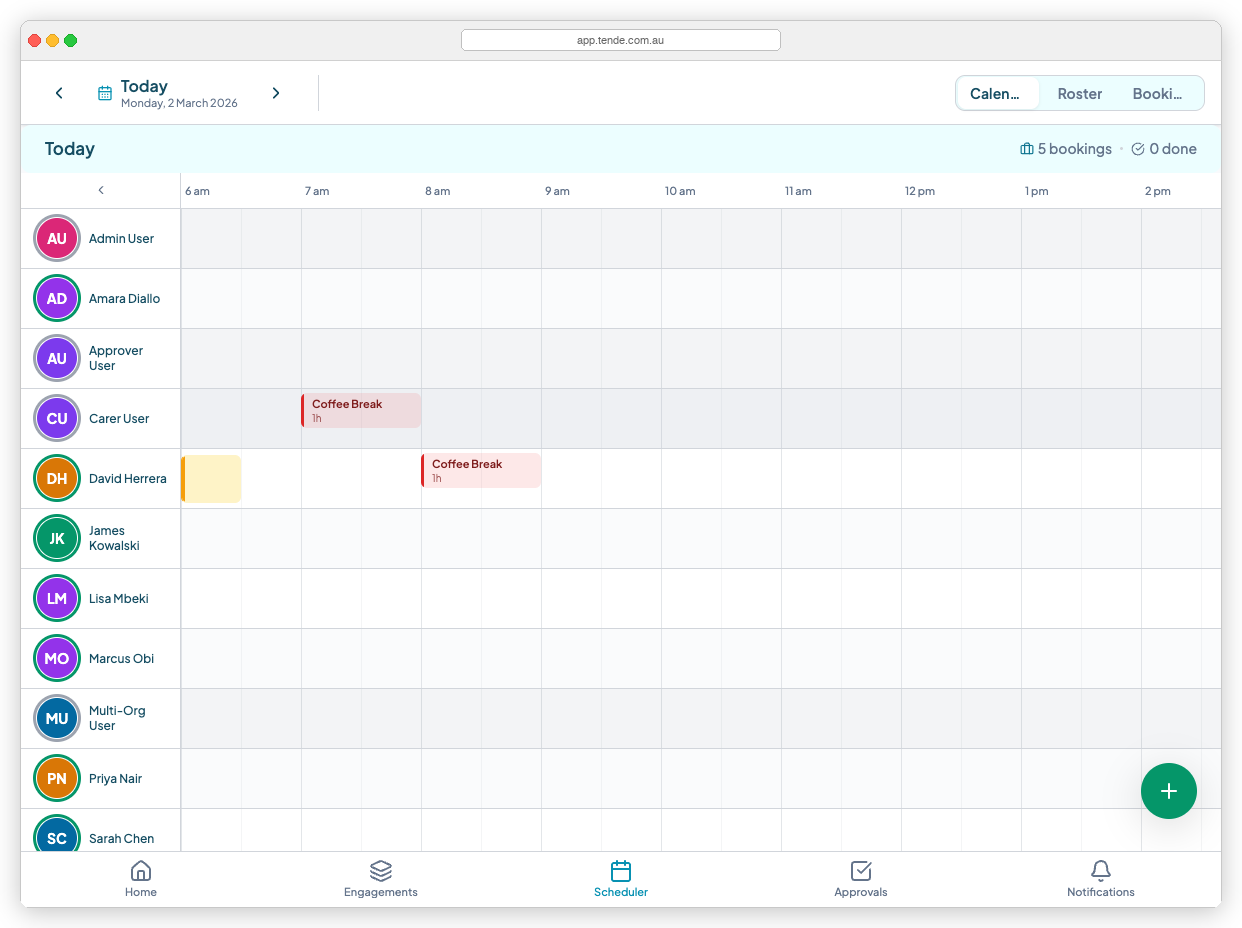
Step 1 — Open the scheduler
- 1.From the main menu, select Scheduler.
- 2.Navigate to the date you want to add the event to.
Step 2 — Create a new event
- 1.Select the Add event button, or tap directly on an empty time slot in a carer's row.
- 2.A panel will appear asking you to choose what kind of event to create.
- 3.Select your custom entity type from the list (e.g. "Coffee Break").
Step 3 — Fill in the event details
- 1.Set the date and time for the event.
- 2.Select the carer to assign it to.
- 3.Fill in the custom fields you defined on the entity type.
- 4.Select Save.
How the event appears on the roster
Once saved, the event appears as a tile on the scheduler board in the carer's row, at the time you set. Custom event tiles display the entity type name and the start time.
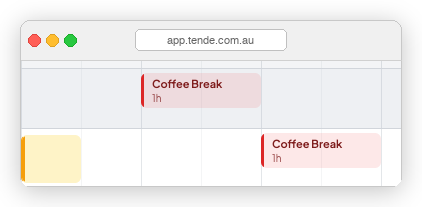
How carers view and interact with the event on mobile
Dynamic events appear in the carer's roster alongside their standard bookings. The carer taps the event tile to view the detail screen, showing all fields from the form.
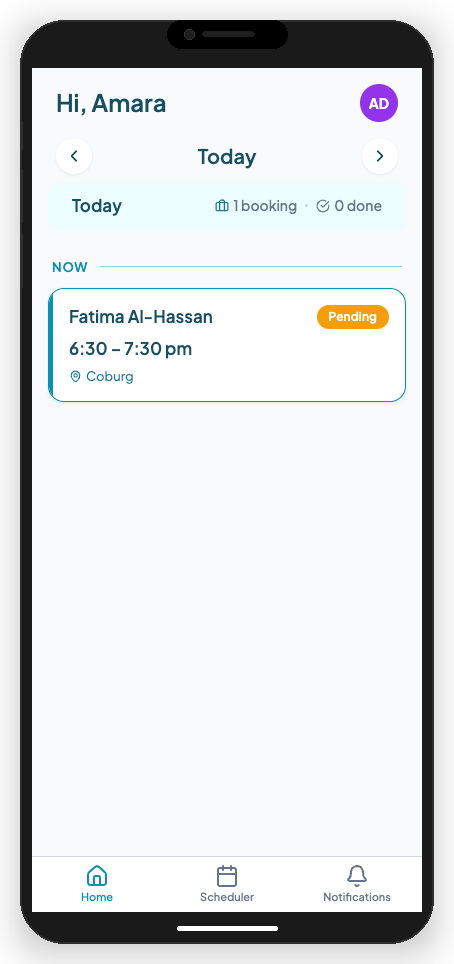
If the entity type permissions allow carers to edit records, they can tap Edit on the detail screen, update any fields, and save.
Removing an event from the roster
- 1.Open the event tile on the scheduler board.
- 2.Select Remove from roster (or Unassign).
- 3.The record is retained in the system but no longer appears on the carer's schedule.
Tips
- Use dynamic events for non-standard activities. If something needs to appear on a carer's day without being a standard client booking, a dynamic event is the right tool.
- Pre-fill fields where you can. Fill in everything you know ahead of time so the carer only needs to confirm or add remaining details on the day.
- Check permissions before publishing. If you want carers to edit the form fields themselves, make sure the entity type permissions allow it.
Related articles
How to Create and Edit Dynamic Forms (Entity Types & Fields)
Build custom forms — called entity types — to capture any information your organisation needs, from incident reports to vehicle checks.
Setting Permissions for Custom Entity Types in Teiro
Control who can create, view, and delete records for each custom entity type — including niche roles with very specific access.
Creating and Viewing Bookings as a Carer
View your scheduled bookings, check in and out, add notes, and create booking records from the Teiro mobile app.