Changing Terminology to Suit Your Business in Teiro
Rename labels throughout Teiro — change "Customer" to "Participant", "Booking" to "Visit", or any other term to match your organisation's language.
Every care organisation uses different language. Some call the people they support "clients". Others use "participants", "residents", or "consumers". Teiro lets you rename the labels used throughout the platform so the language matches your organisation — without changing how anything works.
What you can rename
Teiro has two levels of terminology you can customise:
- 1.Entity type names — the name of a form type (e.g. rename "Booking" to "Visit")
- 2.Field labels — the question or prompt text on a specific field within a form
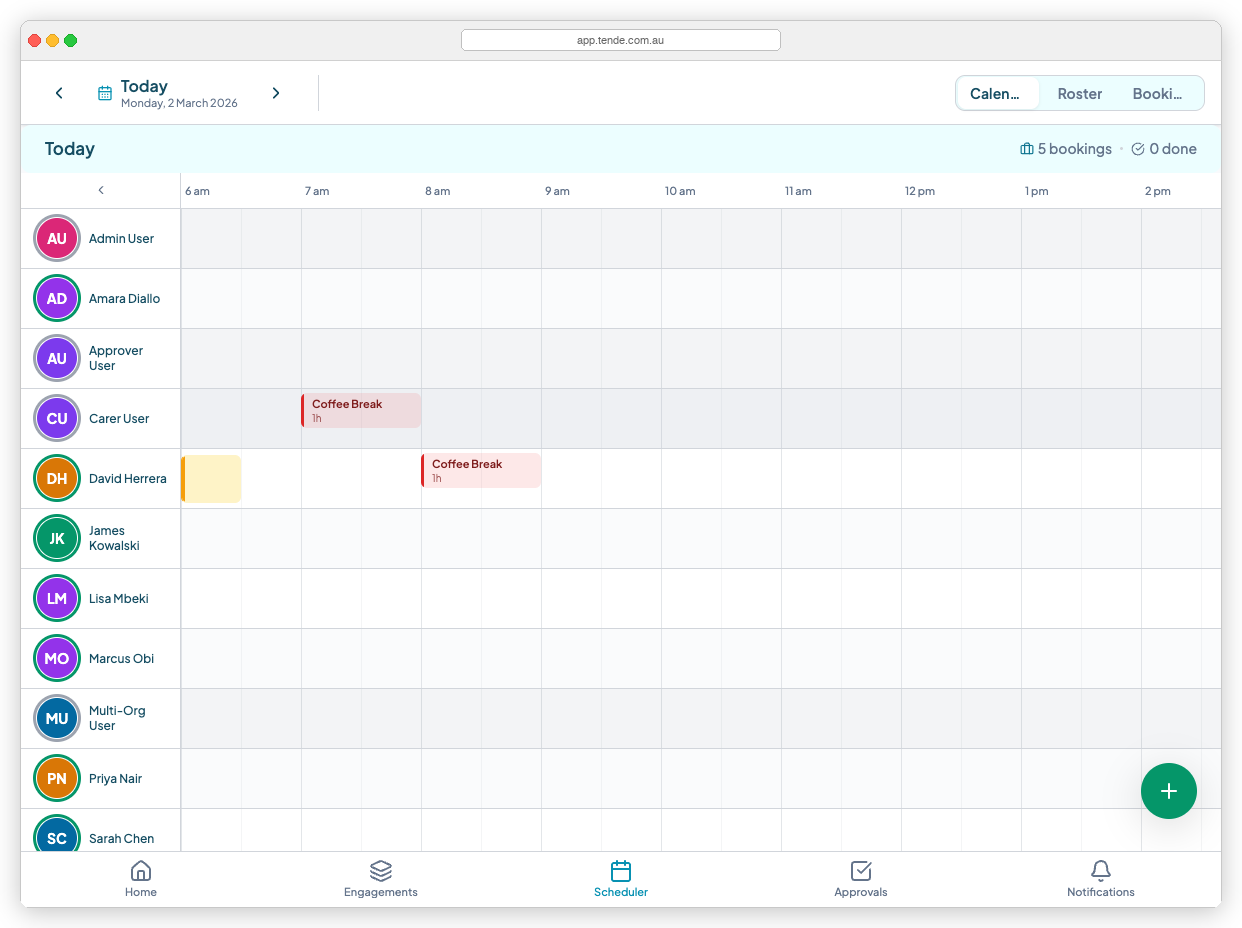
Changes to names and labels update everywhere that term appears in the app — menus, list views, record detail screens, the scheduler board, and the carer mobile app.
Renaming an entity type
- 1.Go to Settings > Entity Types.
- 2.Find the entity type you want to rename.
- 3.Select the edit icon next to it.
- 4.Update the Name field to your preferred term (e.g. change "Booking" to "Visit").
- 5.Select Save.
The new name appears immediately across the platform.
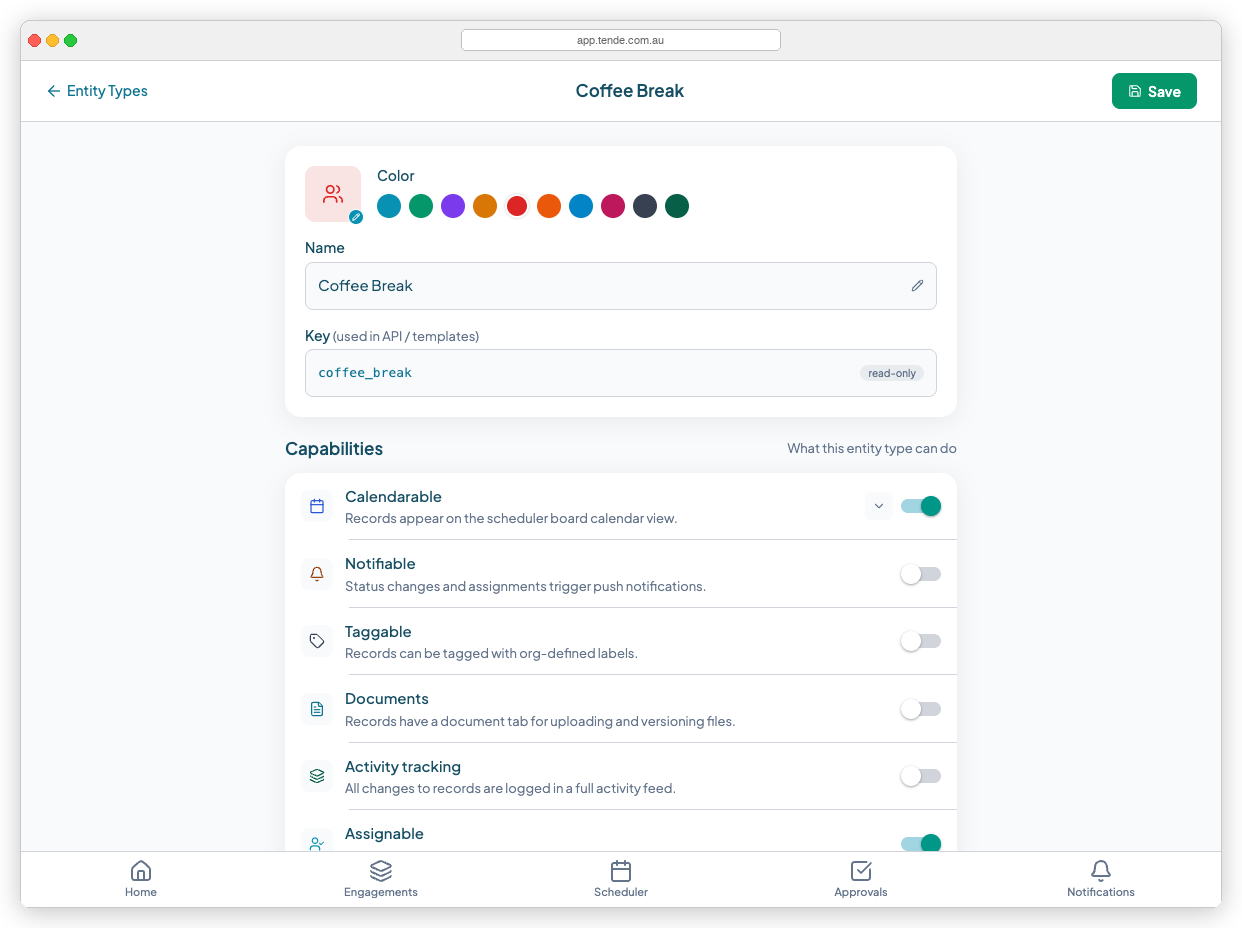
How the system key differs from the display label
When you create an entity type, Teiro generates a system key from the original name (e.g. "Booking" gets the key `booking`). The key is used internally in API calls and data exports — and does not change when you rename the display label.
Tip: If you want the key to match the label from the start, rename the entity type before you begin collecting records.
Renaming field labels
- 1.Open the entity type.
- 2.Find the field you want to relabel.
- 3.Select the edit icon on that field.
- 4.Update the Label field to your preferred wording.
- 5.Select Save field.
Renaming core Teiro labels (Customers, Carers, etc.)
- 1.Go to Settings > Terminology.
- 2.You will see a list of the core terms used in the platform.
- 3.Enter your preferred alternative next to each term.
- 4.Select Save.
Common renamings:
| Default term | Common alternatives |
|---|---|
| Customer | Participant, Resident, Consumer, Client, Patient |
| Carer | Support Worker, Staff Member, Worker |
| Booking | Visit, Session, Shift, Appointment |
| Coordinator | Scheduler, Case Manager, Supervisor |
How terminology changes flow through the app
Once saved, changes apply in real time across all screens — navigation menus, the scheduler board, the carer mobile app (on next refresh), notifications, and report column headers.
Tips
- Agree on terminology before setting it. Decide on your preferred terms during onboarding and set them before go-live.
- Singular and plural forms. Enter the singular form (e.g. "Participant") — Teiro handles pluralisation automatically.
- Terminology does not affect permissions. Renaming "Carer" to "Support Worker" does not change what that role can access.
Related articles
How to Create and Edit Dynamic Forms (Entity Types & Fields)
Build custom forms — called entity types — to capture any information your organisation needs, from incident reports to vehicle checks.
Managing roles and permissions
Control what each team member can see and do with Teiro's role-based access system.
Exporting your data
Export customer, carer, and job data from Teiro in standard formats.