How to create a Teiro account
Sign up for Teiro, create your care organisation, and get into the app in under two minutes.
Creating a Teiro account also creates your care organisation. You become the admin, and from there you can invite your team and start setting up the roster.
Before you start
You'll need:
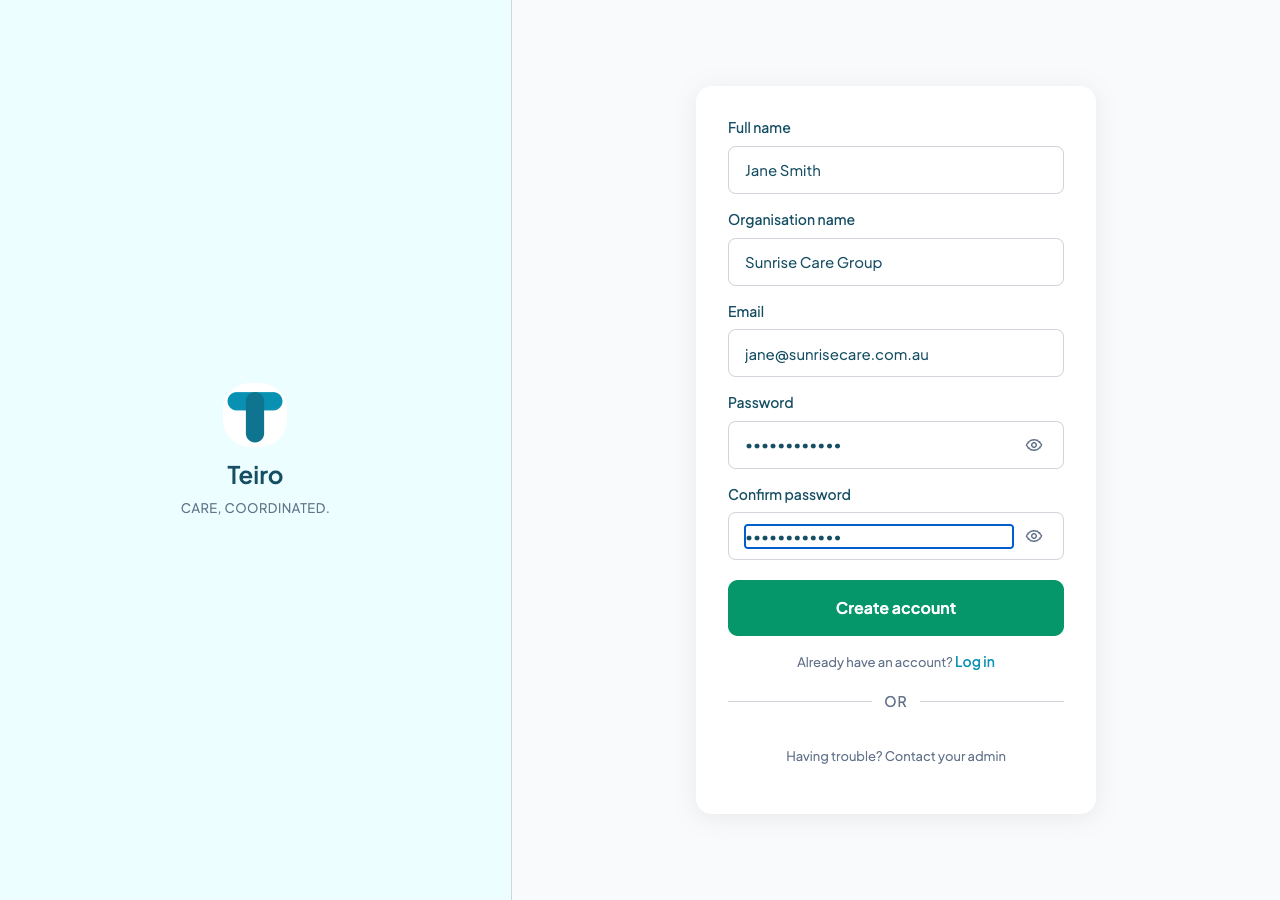
- Your organisation's full trading name (e.g. "Sunrise Care Group" — not an abbreviation)
- A work email address you can access right now
- A password you'll remember
Step 1 — Go to app.teiro.com.au
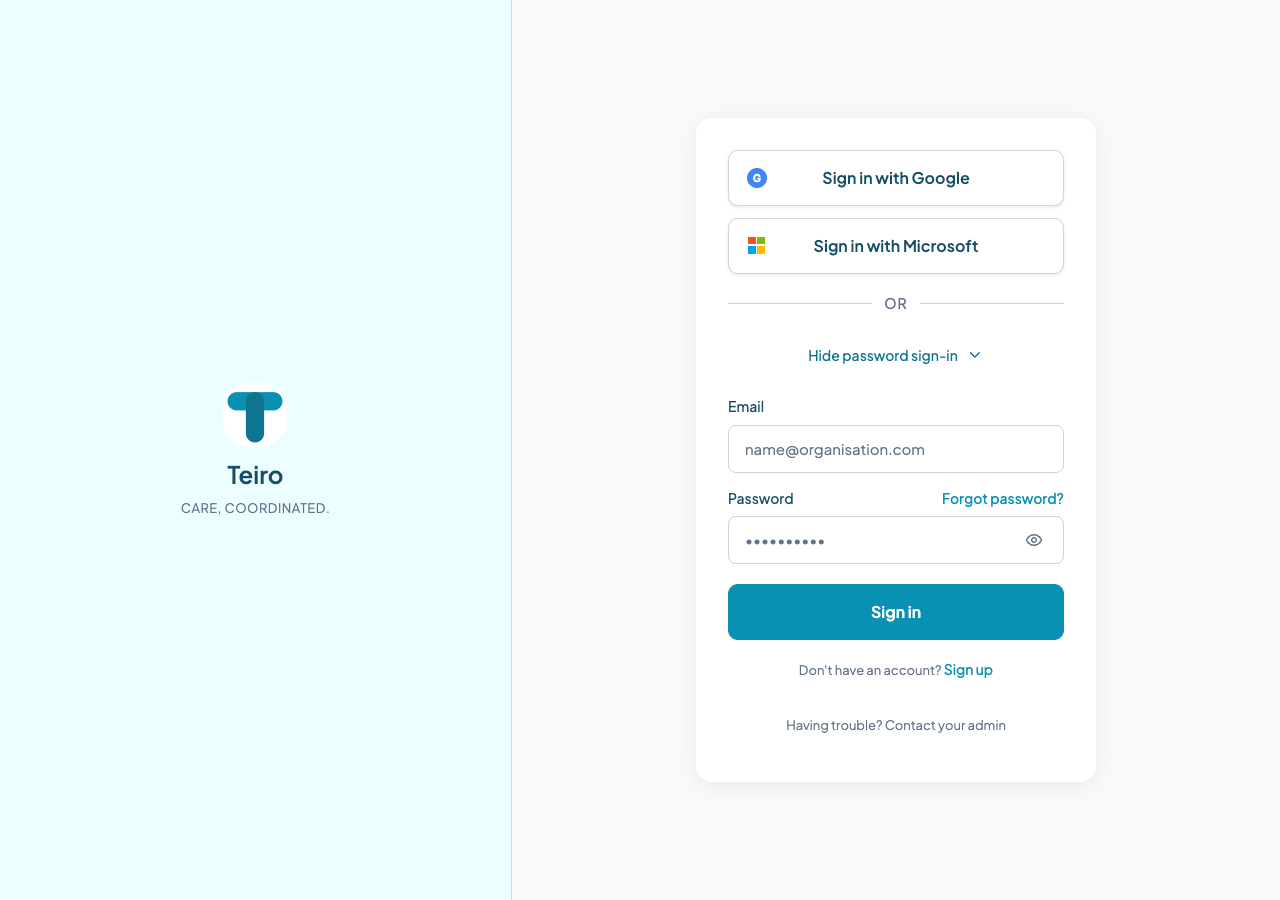
Open your browser and go to app.teiro.com.au. You'll land on the login screen.
Step 2 — Open the sign up form
Click the link at the bottom of the login screen that reads "Don't have an account? Sign up". The registration form opens.
Step 3 — Fill in your details
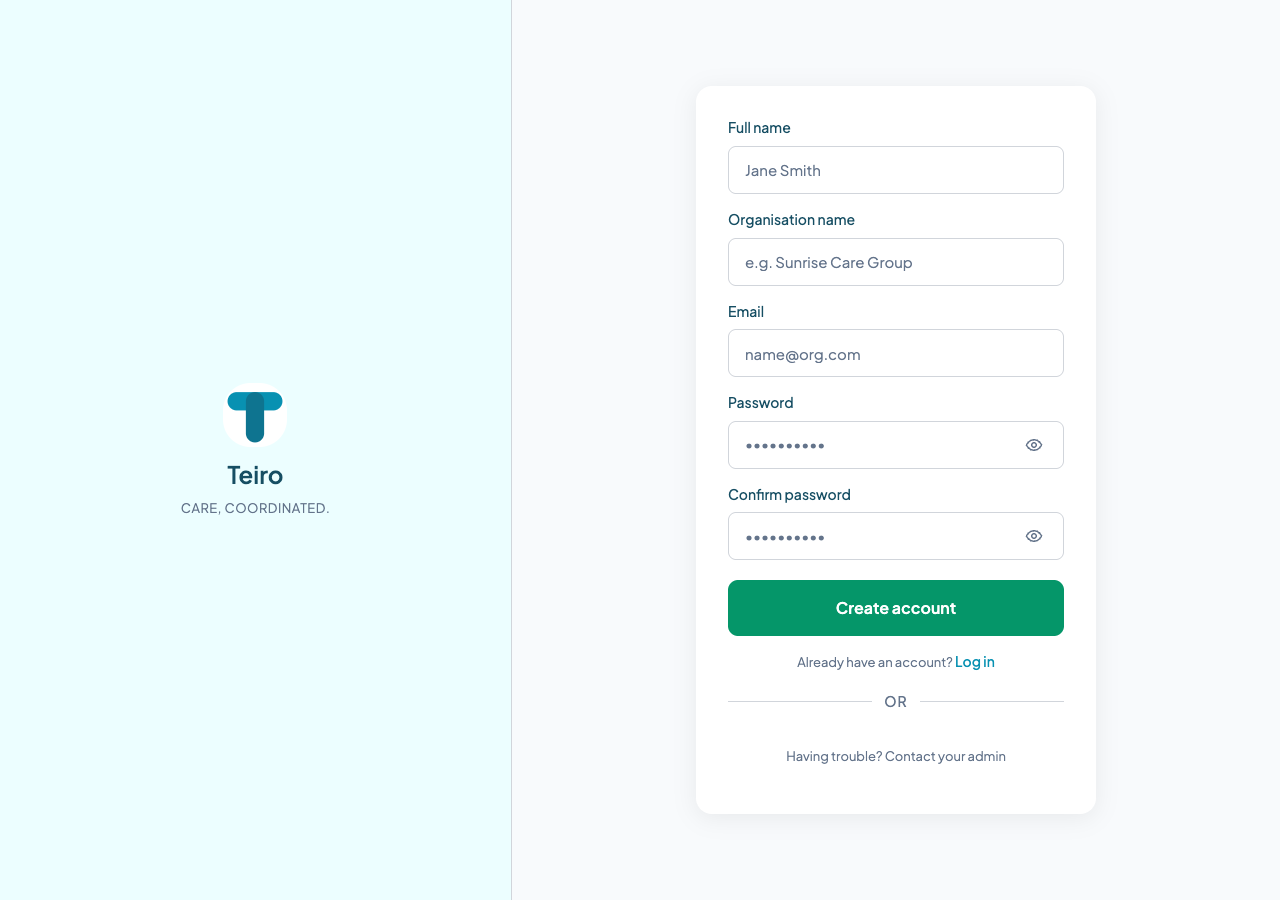
The form has four fields:
Full name — your name, not your organisation's. This appears on records and audit entries.
Organisation name — enter your organisation's full trading name. This is used on documents, reports, and anything client-facing, so use the name you'd put on a letterhead. You can update it later in Settings if needed.
Email — use your work email. This becomes your login and is where team notifications and system alerts will go.
Password / Confirm password — choose something at least 8 characters long. You'll confirm it by typing it twice.
Step 4 — Click "Create account"
Tap the Create account button. Teiro creates your account and logs you in immediately — no email confirmation step.
What happens next
You land on your organisation's dashboard as its administrator. From here:
- Go to Team to invite coordinators, carers, and other staff
- Go to Settings to add your organisation's address, ABN, and timezone
- Follow the quick-start guide to add your first customers and create jobs
Your organisation is yours to configure. Nobody else can access it until you invite them.
Frequently asked questions
Can I change my organisation name after signing up?
Yes. Go to Settings > Organisation and update the name there. Changes take effect immediately.
I made a typo in my email. What do I do?
Contact support and we'll correct it. Email addresses cannot be changed from inside the app once the account is created.
My team already uses Teiro — should I create a new account?
No. Ask your organisation's admin to invite you instead. Creating a new account creates a separate, empty organisation. See the article on inviting your team for instructions.
Related articles
Setting up your organisation in Teiro
Get your Teiro account ready — organisation details, branding, and initial configuration.
Inviting your team to Teiro
Add coordinators, carers, and administrators and assign them the right roles.
Quick start: your first week with Teiro
Follow this guide to get your organisation live in Teiro within your first week.