Creating and Viewing Bookings as a Carer
View your scheduled bookings, check in and out, add notes, and create booking records from the Teiro mobile app.
As a carer in Teiro, your bookings are the centre of your working day. This article explains how to view your scheduled bookings, how to create a booking record when required, and how to view booking details including the activity feed.
Viewing your scheduled bookings
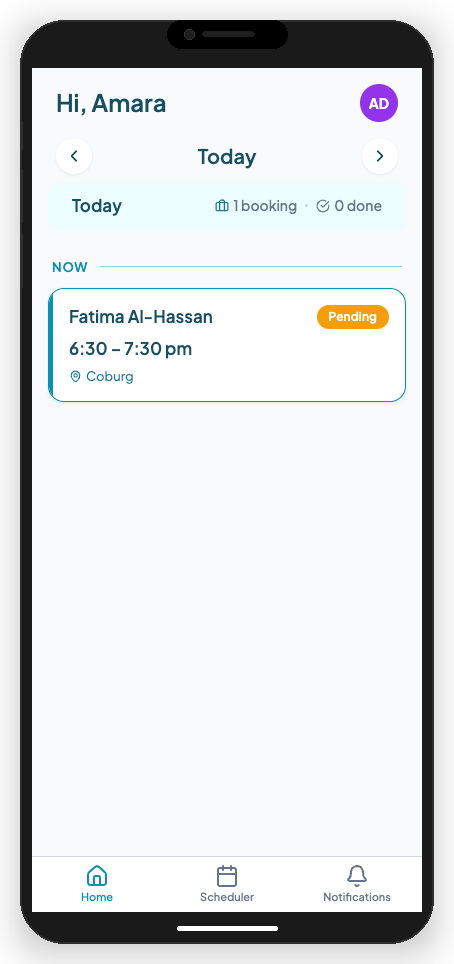
When you open the Teiro app, your bookings for today appear on the Home screen. Each booking shows:
- The client's name
- The start and end time
- The location (if set)
- The booking status (e.g. Scheduled, In Progress, Completed)
Viewing bookings on other days
- 1.From the Home screen, tap the date shown at the top to open the date picker.
- 2.Select a different date to see your bookings for that day.
- 3.Tap a booking tile to open the full booking detail screen.
You can also view your full roster by selecting Roster from the bottom navigation bar.
Viewing a booking's details
Tap any booking tile to open the booking detail screen.
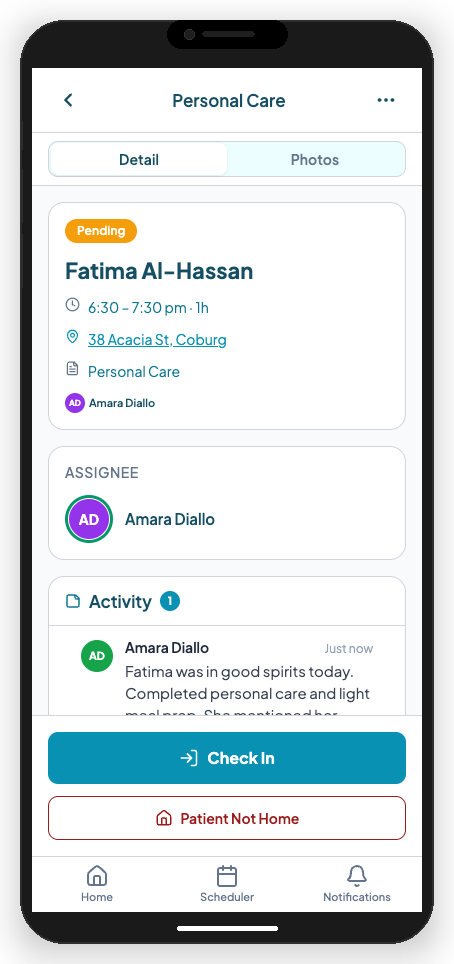
The detail screen shows:
- Client name and contact details
- Time window — the scheduled start and end times
- Address — with a link to open in your maps app
- Care notes — any instructions added by your coordinator
- Status — current booking status and the option to check in or check out
- Activity feed — a log of everything that has happened on this booking
The activity feed
The activity feed shows a chronological history of the booking, including check-in and check-out events, notes added by you or your coordinator, and any status changes.
Adding a note to a booking
- 1.Tap Add note on the booking detail screen.
- 2.Type your note — for example, details about the visit or an observation worth recording.
- 3.Tap Save.
Your note will appear in the activity feed with your name and a timestamp.
Checking in and checking out
- 1.Tap Check in when you arrive. Teiro records the time.
- 2.The status updates to In Progress.
- 3.When the booking is finished, tap Check out.
- 4.Teiro records the completion time. The status updates to Completed.
Creating a booking record (if required)
Some organisations allow carers to create booking records themselves — for example, to log a drop-in visit or an unscheduled support session.
If your organisation has enabled this, you will see an Add button (or plus icon) on your Home screen or Roster.
To create a new booking record:
- 1.Tap the + button.
- 2.Select the type of record from the list.
- 3.Fill in the required fields — typically the client, date, start time, and end time.
- 4.Tap Save.
Note: Not all organisations allow carers to create bookings. If you do not see the + button, your coordinator creates and assigns bookings to you.
Tips
- Add notes during or immediately after a visit. Notes added at the time are more accurate than ones written later.
- Check in on arrival, not before. The check-in timestamp is used for payroll and compliance reporting.
- If a booking looks wrong, contact your coordinator. Use the Add note feature to flag anything that needs attention.
Related articles
Checking in and out of a job
How carers check in at the start of a visit and check out when they leave.
How to Allocate Dynamic Events to Users on the Roster
Create records of custom entity types — like coffee breaks or vehicle checks — and place them on the scheduler roster against a specific carer.
Carer app overview
Everything carers can do in the Teiro mobile app — jobs, check-ins, incidents, and more.