Currency Field Type
The currency field captures dollar amounts on any form — kilometre reimbursements, out-of-pocket expenses, NDIS budget line items, or any other monetary value your organisation needs to track. Values are stored as integer cents and displayed as formatted dollar amounts.
Teiro's currency field captures dollar amounts on any form — kilometre reimbursements, out-of-pocket expenses, NDIS budget line items, or any other monetary value your organisation needs to track. It stores values as precise integer cents, displays them as formatted dollar amounts (e.g. $42.50), and handles validation so only valid amounts can be submitted.
This article covers what the currency field looks like, when to use it in care settings, how to add it to a form, and what the captured data looks like.
---
What is the currency field?
The currency field renders as a standard text input with a `$` symbol fixed to the left. When focused, it accepts raw numeric entry (e.g. `42.50`). When the field loses focus, the value formats to the standard display (e.g. `$42.50`). Entering nothing leaves the field blank; entering an invalid value shows an inline error.
Values are stored as integer cents internally — $42.50 is stored as `4250`. This avoids floating-point rounding issues common with dollar amounts in software.
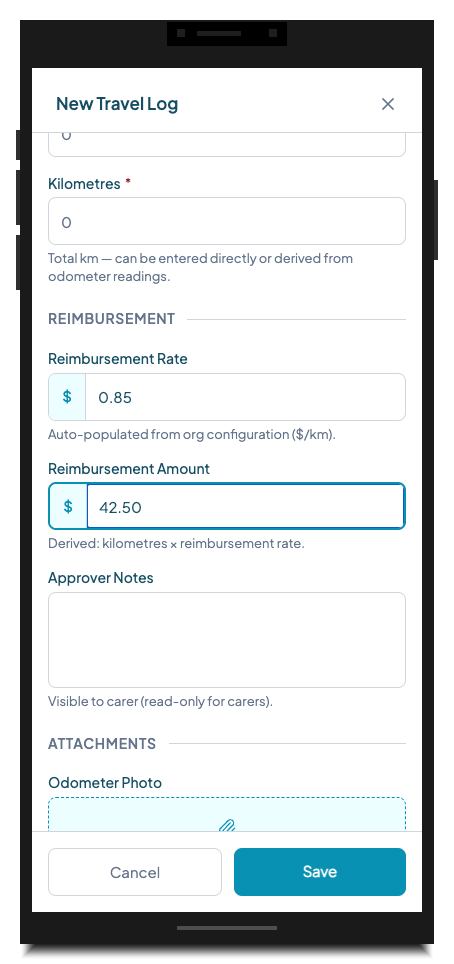
*Two currency fields in the Travel Log form. The $ prefix is separate from the input to avoid cursor bugs. Values display with two decimal places.*
---
When and why to use it
Any time your forms need to capture a dollar amount, the currency field is the right choice. In disability, aged care, and community health settings, the most common uses are:
Kilometre reimbursement NDIS providers routinely reimburse support workers for kilometres driven in their own vehicle. Teiro's built-in Travel Log entity type uses two currency fields: one for the reimbursement rate ($/km, auto-populated from your organisation's configuration) and one for the reimbursement amount (derived from km × rate, but editable if needed). This creates a complete, auditable travel record that can be attached to a payroll or finance export.
Out-of-pocket expense claims Support workers sometimes pay for participant-related expenses — a coffee, a bus fare, an activity entry fee — and claim these back. A currency field on an expense claim form captures the exact amount. Combined with a receipt upload field (file upload type) and a category dropdown, you have a complete expense record.
NDIS budget tracking Coordinators managing support coordination budgets often need to record the value of a service delivered or a funding allocation decision. A currency field on a Progress Note or Coordination Note lets them record the dollar value of the support delivered in that session, which can later be aggregated for budget reporting.
Funding allocation records For plan managers or support coordinators, recording the agreed price or service value against a support record creates a financial trail that connects directly to the participant's care record — rather than living only in a separate billing system.
Co-contribution and client fees Some providers charge participants a co-contribution for meals, transport, or activities. A currency field on the relevant record captures what was charged, to whom, and when.
---
How to add a currency field to a form
Currency fields are added through the entity type builder in Settings.
Step-by-step
- 1.Go to Settings and tap Entity Types.
- 2.Select the entity type you want to add the field to, then tap Edit (or create a new entity type).
- 3.Scroll to the Fields section and tap Add field.
- 4.Enter a Field label — for example, "Reimbursement Amount", "Session Value", or "Expense Amount".
- 5.In the Field type selector, choose Currency.
- 6.Optionally add:
- 7.Set the field as Required if the record cannot be submitted without an amount.
- 8.Tap Save field.
The field will appear in the form with the `$` prefix and decimal formatting.
Tip: For reimbursement workflows where the amount is calculated from other fields (e.g. km × rate), add a help text note explaining how the figure should be derived. Teiro does not yet auto-calculate derived fields — the carer or coordinator enters the value manually. If you want a calculated default, use the Default value option to pre-fill a common rate.
---
What the form looks like
In a form, currency fields look like standard number inputs with the `$` prefix on the left. The field accepts standard decimal input — you can type `42.5` or `42.50` and both are handled correctly.
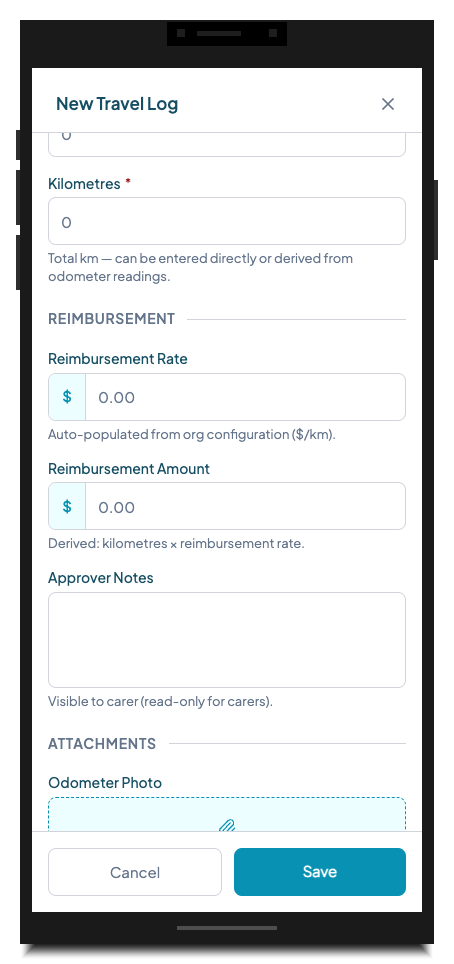
*Two currency fields before any values are entered. The $ prefix is visually distinct from the input. Help text below each field explains how the value should be determined.*
When values are entered, they display as raw decimals while the field is active. Tapping away (losing focus) would format them to the standard `$X.XX` display. In the example above, $0.85 and $42.50 are correctly formatted values for a 50km trip at the standard NDIS reimbursement rate.
---
What the data looks like
Currency values are stored as integer cents in the database. This is standard practice for financial amounts in software — it avoids floating-point precision issues.
| Display | Stored value |
|---|---|
| $0.85 | 85 |
| $42.50 | 4250 |
| $1,250.00 | 125000 |
| $0.00 or blank | null |
When the field value is exported — via PDF, API, or data export — the stored cents value is formatted back to the display string (`$42.50`). Blank fields export as empty.
In PDF exports, currency fields appear with the `$` prefix and two decimal places, matching the display in the app.
In API responses, currency fields return the integer cents value. Your integration layer is responsible for dividing by 100 to get a decimal dollar amount, or formatting for display.
---
Tips and gotchas
Two decimal places only. The field supports up to two decimal places — cents. You cannot enter fractional cents (e.g. $0.855). If your reimbursement rate uses three decimal places (e.g. NDIS km rate of $0.856), round to two before entry or capture the rate at two decimal places per your organisation's policy.
Negative values. The currency field supports negative amounts if `allowNegative` is enabled in the field configuration — useful for credits, adjustments, or reversals. By default, negative entry is not allowed. If you need this, contact your administrator to enable it for specific fields.
No automatic calculation. The currency field is a data capture field, not a formula field. If you need to show a calculated amount (e.g. km × rate), the carer or coordinator calculates it and enters it manually. The help text and placeholder are useful for explaining how the value should be derived.
Blank vs. zero. Leaving a currency field blank and entering `$0.00` are treated differently. Blank means no value was provided; `$0.00` is a valid submitted value. If your reporting distinguishes between "not recorded" and "zero amount", use a required field — this prevents blank submissions when an amount is always expected.
Currency is AUD. The field displays `$` and assumes AUD. There is no multi-currency option in the current version.
Validation. The field validates on blur (when the user taps away). If a non-numeric or out-of-range value was entered, an inline error appears and the form cannot be saved until it is corrected.
---
Try it in Teiro
Currency fields are available on all Teiro plans. The built-in Travel Log entity type uses two currency fields out of the box and is ready to use without configuration.
[Book a walkthrough](https://www.teiro.com.au/demo) to see expense and reimbursement tracking in action, or [start a free trial](https://www.teiro.com.au/signup) to set up your own travel log and expense forms.
Related articles
How to Create and Edit Dynamic Forms (Entity Types & Fields)
Build custom forms — called entity types — to capture any information your organisation needs, from incident reports to vehicle checks.
Managing care plans
Create, update, and maintain care plans for each customer within Teiro.
Exporting your data
Export customer, carer, and job data from Teiro in standard formats.