Signature Field Type
The signature field captures handwritten sign-offs directly on any form — on a phone or tablet, in the field, without paper. Signatures are stored as part of the record and appear in PDF exports, providing an auditable trail of who signed, on which device, and when.
Teiro's signature field captures handwritten sign-offs directly on any form — on a phone or tablet, in the field, without paper. A carer completes a support plan, taps "Tap to sign," draws their signature on screen, and the record is complete. The signature is stored as part of the record and appears in PDF exports.
This article covers what the signature field looks like, when to use it in care settings, how to add it to a form, and what the captured data looks like.
---
What is the signature field?
The signature field renders as a button in a form labelled "Tap to sign." Tapping it opens a full-screen drawing surface where the person signs using their finger or a stylus. When they tap Done, the signature is saved as an image and shown as a thumbnail in the form. A "Change signature" link appears if they need to redo it.
The drawing surface works on both mobile and web — touch on phones and tablets, mouse on desktop.
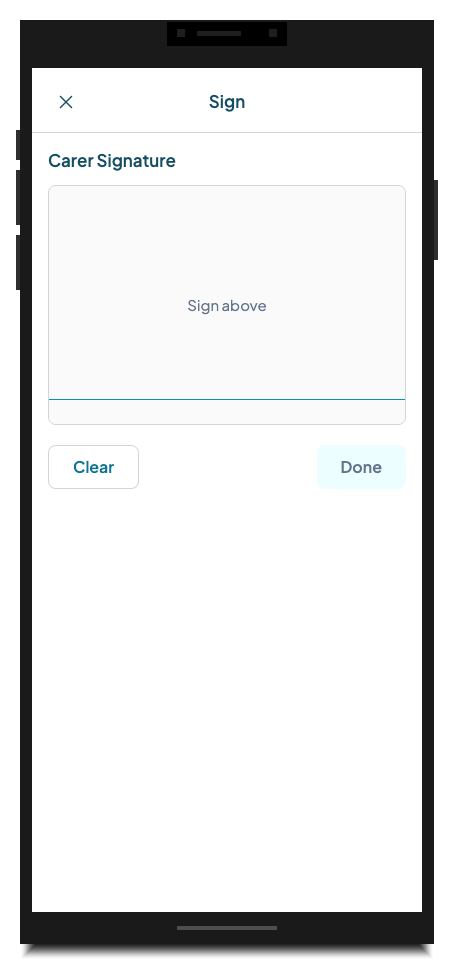
*The signature capture screen. The person signs on the drawing surface. Done becomes active once a stroke is detected.*
---
When and why to use it
Electronic signatures reduce your paper trail and create a clear, timestamped record of who signed what and when. In care settings, this matters everywhere from daily support notes to formal plan reviews.
NDIS support plans and service agreements NDIS providers are required to have signed service agreements and support plans on file. Capturing the participant's or their guardian's signature digitally means the document is complete at the time it is created — not later, after someone has chased a printed copy. Teiro's built-in Support Plan entity type includes both a coordinator signature and a client/guardian signature field.
Handover notes and progress notes Many providers require carers to sign off on each progress note as the completing practitioner. A signature field on the progress note form makes this a one-tap step at the end of a shift.
Incident reports Incident reports often require sign-off from both the carer who observed the incident and a supervisor or coordinator who reviewed it. Two separate signature fields — one carer-facing, one coordinator-facing — handle this cleanly. You can set field visibility and editability per role in the entity type access settings.
Body map observations After completing a skin integrity check or body map, the carer signs to confirm the observations are accurate and complete. This creates a clear chain of custody for clinical documentation.
Consent and check-in forms For any form where you need documented acknowledgement — a consent to photograph a wound, a vehicle pre-start check, a medication administration record — a signature field adds that acknowledgement without printing anything.
---
How to add a signature field to a form
Signature fields are added through the entity type builder in Settings.
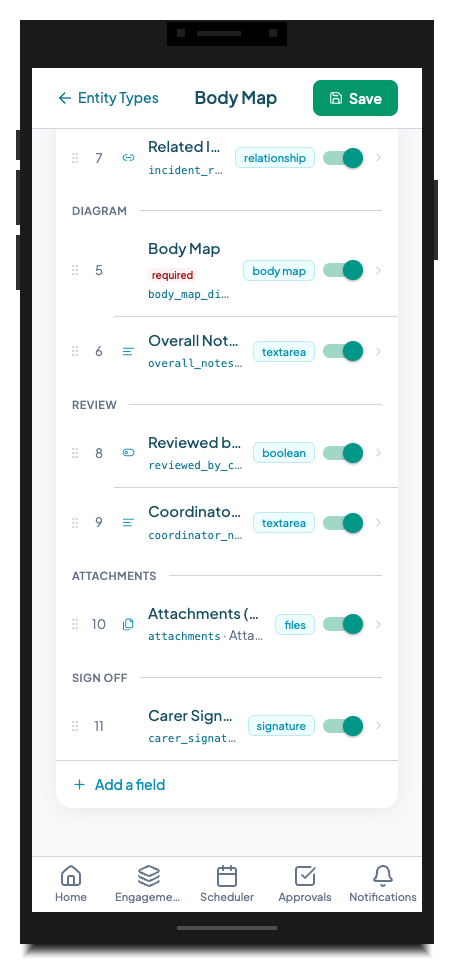
*The "signature" type badge in the entity type builder's field list identifies a signature field.*
Step-by-step
- 1.Go to Settings and tap Entity Types.
- 2.Select the entity type you want to add the field to, then tap Edit.
- 3.Scroll to the Fields section and tap Add field.
- 4.Enter a Field label — for example, "Carer Signature", "Coordinator Sign-Off", or "Client/Guardian Signature".
- 5.In the Field type selector, choose Signature.
- 6.Add a Section name to group it visually — for example, "Sign Off" or "Acknowledgement".
- 7.Set the field as Required if the record cannot be submitted without a signature.
- 8.Tap Save field.
The field will appear in the form as a "Tap to sign" button.
Tip: If you need two signatures — for example, carer and coordinator — add two separate signature fields with different labels and place them in the same section. Each one is independently captured and stored.
---
What the form looks like
In a form, the signature field appears as a compact button. Before signing it shows "Tap to sign." After signing it shows the captured signature thumbnail with a "Change signature" link below.
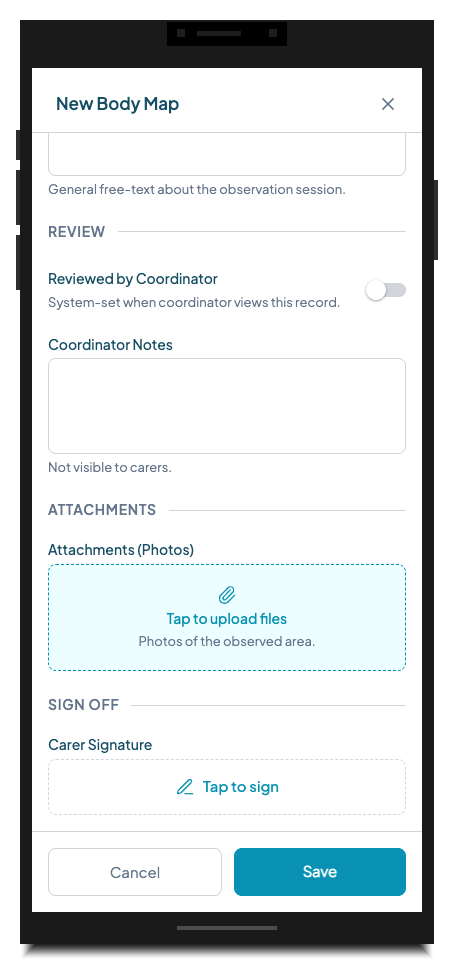
*The signature field before signing. The "SIGN OFF" section heading keeps it visually separated from the content fields above.*
Tapping "Tap to sign" opens the full-screen capture screen. The person draws their signature. The Done button activates once a stroke is detected.
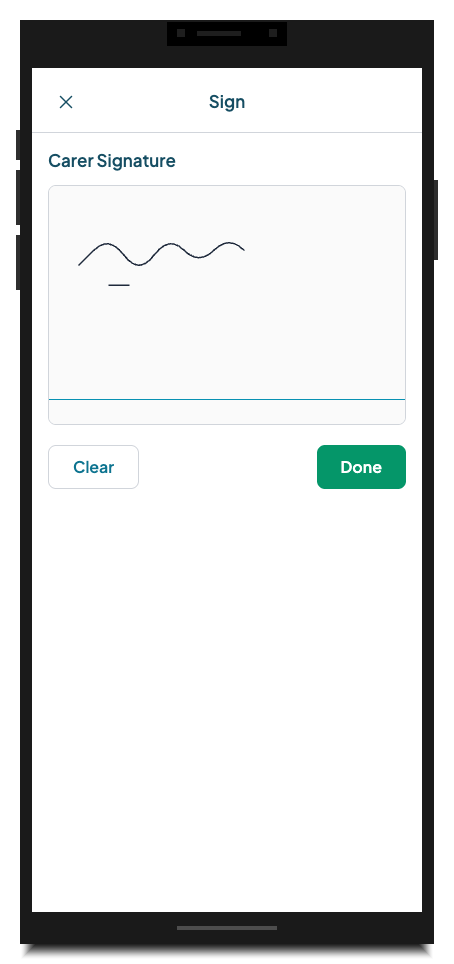
*The capture screen with a completed signature. Done is now active. Clear wipes the canvas if they need to start again.*
After tapping Done, the form returns and shows the captured signature:
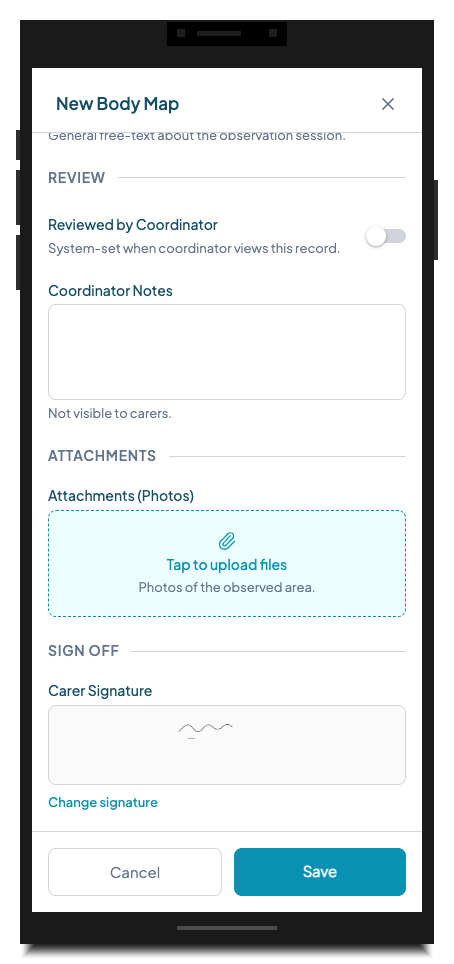
*The form after signing. The signature thumbnail is displayed inline. "Change signature" allows a redo before saving.*
---
What the data looks like
When a signature is captured, it is saved as a base64-encoded SVG image. The backend uploads this to secure storage and stores a reference URL against the field value in the record.
In PDF exports and printed record summaries, the signature image appears inline at the relevant field position. The record also stores:
- The timestamp of when the signature was captured
- Which user was logged in when the form was submitted (stored in the record's audit trail)
This provides an auditable trail: who signed, on which device, and when.
---
Tips and gotchas
Signature fields are for people who are present. The capture happens on the device being used to fill in the form. If a coordinator needs a carer to sign after the fact, they can open the record on the carer's device and capture the signature there. Signatures sent by email or typed name are not supported — the field specifically captures a drawn stroke.
Required vs. optional. If you make a signature field required, the form cannot be saved without it. This is appropriate for sign-offs that are mandatory by policy (e.g. incident report carer sign-off). For coordinator review signatures that happen after initial submission, keep the field optional so the carer can save the record first.
Role visibility. If you have a coordinator review signature field that carers should not see or fill in, you can control who can write to each field via the entity type's access settings. Carers filling in the initial record will not see coordinator-only fields.
Redo is always available before saving. The "Change signature" link lets the person redo their signature at any time before the record is saved. Once saved, signatures become part of the permanent record. If a signature needs to be corrected after saving, contact your administrator — record editing rules depend on your organisation's settings.
PDF output. Signature images are included in record PDF exports. This means a signed support plan or incident report can be exported as a complete, self-contained PDF with the signature rendered inline — ready to attach to an email or file in your document management system.
---
Try it in Teiro
Signature capture is available on all Teiro plans. Teiro includes ready-to-use entity types with signature fields already configured — Support Plan, Incident Report, Handover Note, and Body Map all include one or more signature fields out of the box.
[Book a walkthrough](https://www.teiro.com.au/demo) to see paperless sign-off in action, or [start a free trial](https://www.teiro.com.au/signup) to experience it with your own team.
Related articles
Body Map Field Type
The body map field lets carers and coordinators document physical observations — wounds, bruises, pressure areas, and other skin integrity findings — by tapping directly on a front-and-back human silhouette diagram. Each marker is colour-coded, numbered, and paired with type, severity, and description details.
How to Create and Edit Dynamic Forms (Entity Types & Fields)
Build custom forms — called entity types — to capture any information your organisation needs, from incident reports to vehicle checks.
Submitting incident reports
Report incidents, near misses, or safeguarding concerns directly from the app.