Using Lists to find records
Lists give you a single place to browse every type of record in your organisation — Customers, Incident Reports, Support Plans, and more. Tap Lists on the home screen or your profile to open the picker, search by name, and jump straight to any record list.
Lists give you a single place to browse every type of record in your organisation — Customers, Incident Reports, Support Plans, Progress Notes, and anything else your organisation uses. You can get to Lists from the home screen or your profile.
---
Where to find Lists
From the home screen
Scroll to the bottom of the home screen. Below the action buttons (New Entry, Open Board, Approvals) you will see a Lists row with a chevron. Tap it to open the Lists picker.
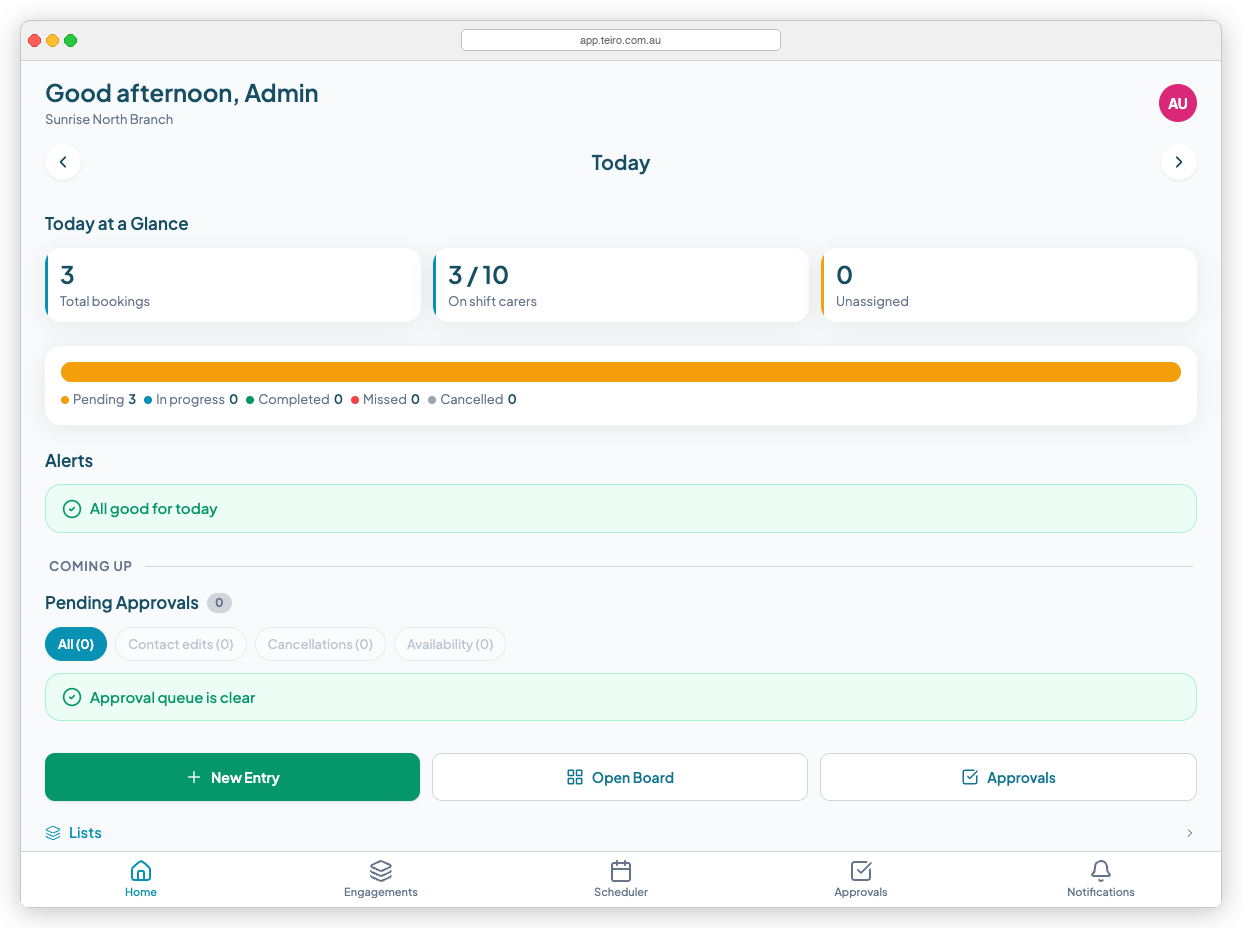
*The Lists button sits at the bottom of the home screen, below the quick-action buttons.*
From your profile
Tap your avatar or initials in the top-right corner of any screen to open your profile. A Lists button appears there as well — useful when you are already in the profile area and want to jump to a record list without going back to the home screen first.
---
The Lists picker
Tapping Lists opens a modal showing every entity type your organisation has set up. Each row shows the entity type name and, where applicable, how many fields it contains.
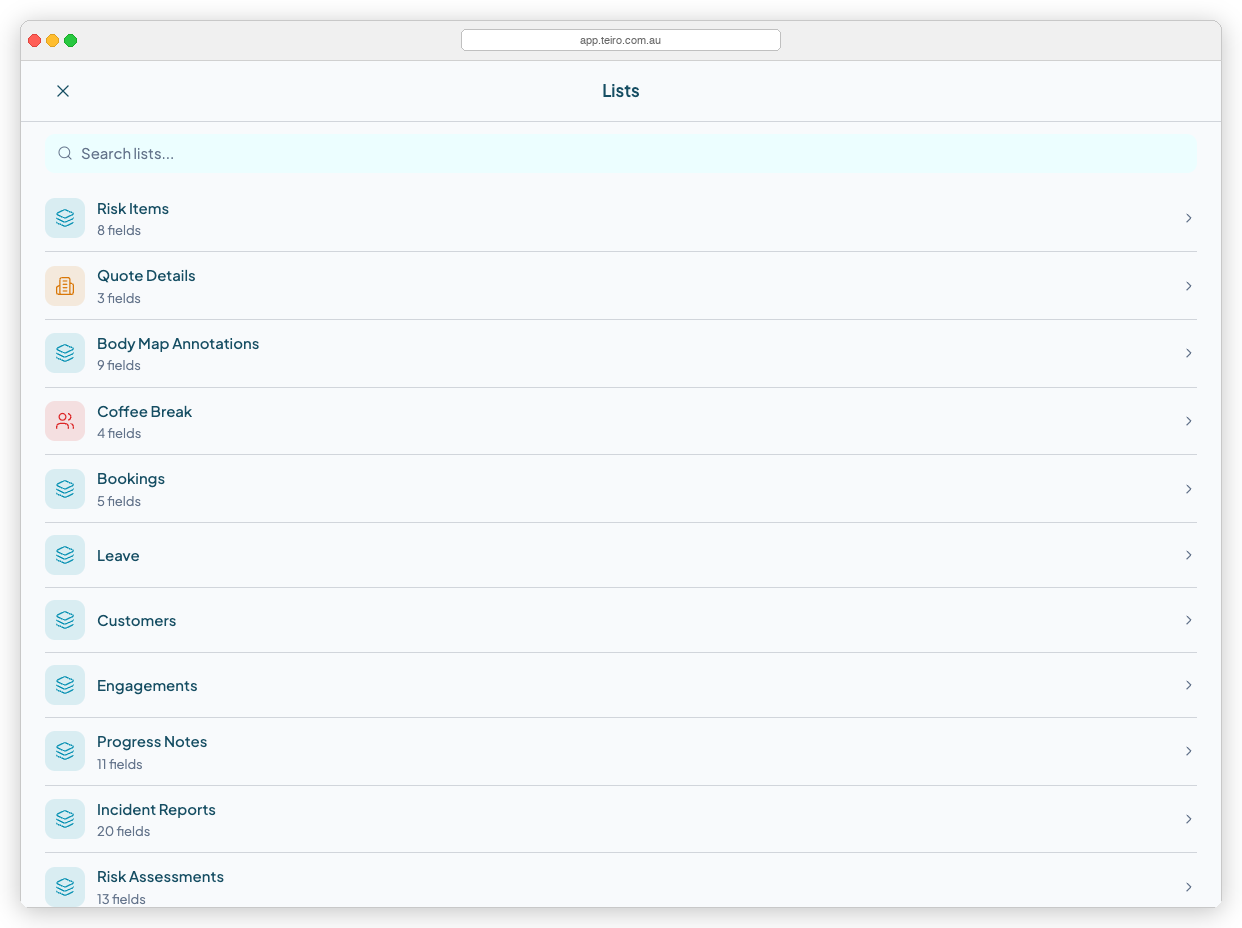
*The Lists picker shows all entity types available to your role. Tap any row to open that record list.*
---
Searching for a list
If your organisation has many entity types, use the Search lists... field at the top of the modal to filter by name. Type part of the name and the list narrows instantly.
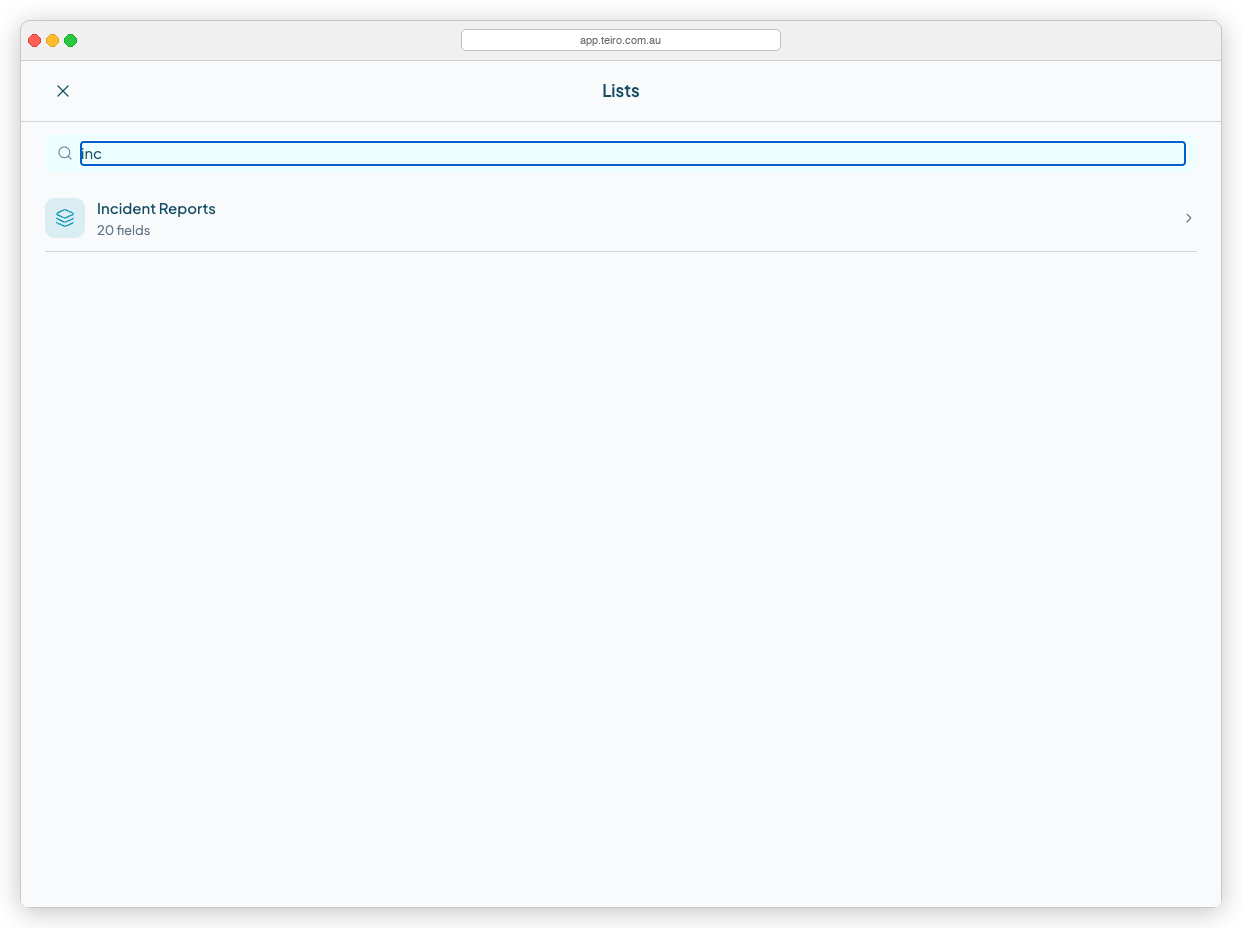
*Searching narrows the list immediately. Here, typing "inc" shows only Incident Reports.*
---
Opening a record list
Tap any row in the picker to open that entity type's record list. The modal closes and you land directly on the list screen.
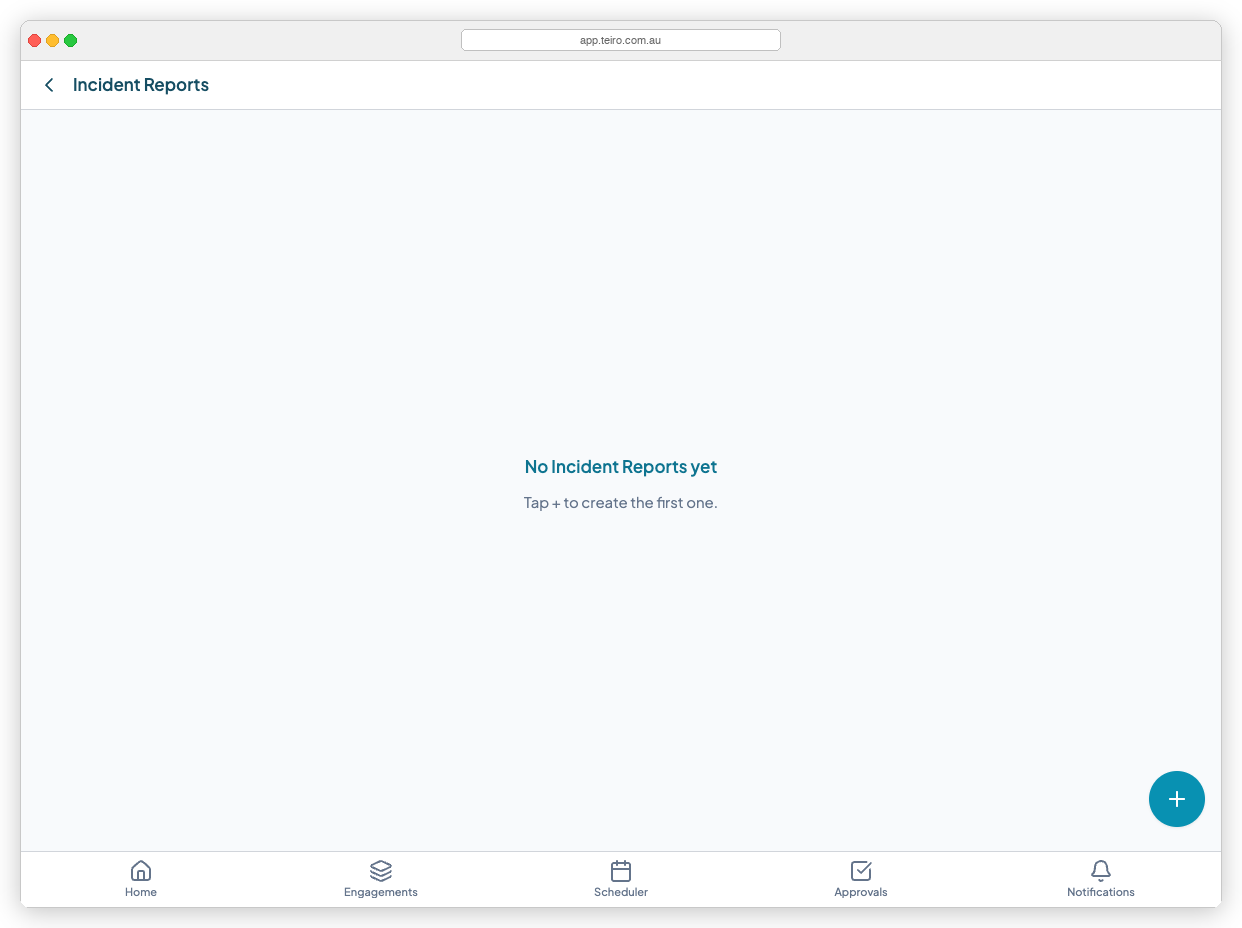
*The record list for Incident Reports. Empty lists show a prompt to create the first record using the + button.*
From the record list you can:
- Browse all records of that type for your organisation
- Tap a record to open it and view or edit its fields
- Tap the + button (bottom-right) to create a new record
---
Which entity types appear?
The Lists picker shows entity types based on your role and your organisation's configuration. If an entity type does not appear for you, it may be hidden for your role — speak to your administrator if you expect to see something that is not there.
Some entity types (like Bookings and Leave) are built in. Others — Incident Reports, Support Plans, Progress Notes, Body Maps, and so on — are configured by your organisation and may have custom names.
---
Tips
Fastest route for repeat access. If you open the same list every day (for example, Incident Reports or Progress Notes), the Lists picker is the quickest way to get there from the home screen — two taps from anywhere in the app.
Creating records from a list. You can create a new record directly from the list screen using the + button. This is equivalent to using New Entry from the home screen, but starts you in the right list rather than asking you to choose a type first.
Back navigation. After opening a record or creating one, tap the back arrow (top-left) to return to the record list.
---
Ready to try it? [Book a walkthrough](https://www.teiro.com.au/demo) or [start a free trial](https://www.teiro.com.au/signup).
Related articles
Pinning your most-used lists
Coming soon: pin your most-used entity type lists directly to your home screen for one-tap access. Safety coordinators can pin Incident Reports, care coordinators can pin Support Plans — each person personalises their own workspace.
Carer app overview
Everything carers can do in the Teiro mobile app — jobs, check-ins, incidents, and more.
Submitting incident reports
Report incidents, near misses, or safeguarding concerns directly from the app.