How to Generate a Client Progress Summary
Generate an AI-assisted progress summary for a client based on job records and carer notes within a date range you choose. Useful for NDIS plan reviews and family reporting.
What is a progress summary?
CareOS can generate an AI-assisted progress summary for a client based on job records and carer notes within a date range you choose. This is useful for NDIS plan reviews, reporting to families, or sharing with plan managers.
Progress summaries are generated on demand. They are drafts -- always review the output before sharing with any external party.
Who can access this feature
Progress summary generation is available to users with the Scheduler or Admin role. Carers do not have access to this feature.
How to generate a summary
Step 1: Open the client profile
Navigate to Clients in the main menu and select the client you want to generate a summary for.
Step 2: Go to the Reports tab
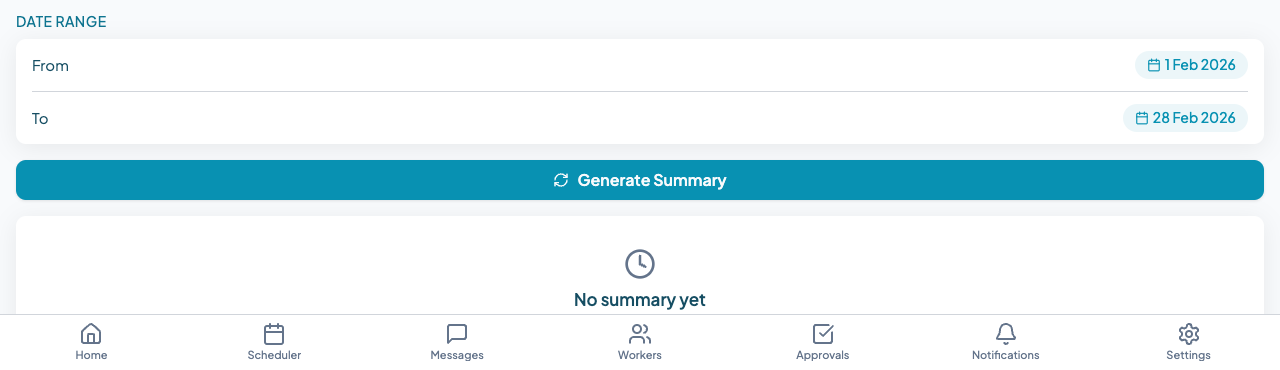
Inside the client profile, select the Reports tab. You will see a date range picker and the Generate Summary button.
Step 3: Select a date range
Use the date pickers to set the period the summary should cover. Tap the From or To date to open the date picker and choose the start and end of the period.
The summary will draw on all jobs completed within that range, including carer notes, check-in and check-out times, and any incidents or observations recorded against those jobs.
Step 4: Tap Generate Summary
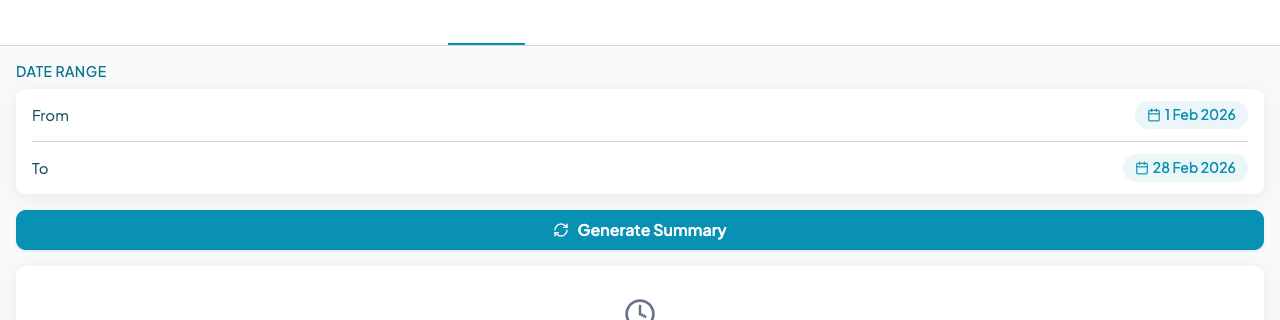
Tap the Generate Summary button to start the process.
Generating a summary takes between 15 and 60 seconds depending on the number of jobs in the selected period. A progress indicator will appear while the summary is being written. Do not navigate away from the screen while this is running.
Step 5: Review the summary
Once complete, the summary appears in a text area below the controls. Read through it carefully.
The summary is editable. If the AI has included anything inaccurate, missed something important, or used language that does not reflect your organisation's voice, edit the text directly before sharing.
Sharing and exporting
Once you are satisfied with the summary, you have two options:
Share -- Taps the device share sheet (on mobile) or copies a shareable link (on web). Use this to send the summary to a plan manager, support coordinator, or family member via email or message.
Export to PDF -- Generates a formatted PDF of the summary including the client's name, the date range, and your organisation's name. The PDF is suitable for attaching to a plan review submission or filing in the client's record.
Important: review before sharing
Progress summaries are generated by AI. They are based on structured data in CareOS, but the AI may:
- Omit details that appear in notes but are ambiguous or brief
- Use generalised language that does not reflect the specific nuances of a participant's support needs
- Draw incorrect inferences from incomplete records
Always review the summary yourself before sharing it with the participant, their family, their plan manager, or any external party. The summary is a drafting tool. The person who reviews and approves it is responsible for its accuracy.
If your organisation has a quality review process for participant-facing documentation, apply that process here as well.
Frequently asked questions
Can I generate summaries for past months? Yes. You can select any date range with completed jobs in the system, including periods from previous months or years.
What if there are very few jobs in the selected period? The summary will reflect what is available. If there are only one or two jobs, the output will be shorter and less detailed. A note will appear if the system considers the data insufficient for a meaningful summary.
Is the generated summary saved automatically? No. The summary is not saved to the client record automatically. If you want to retain it, export it as a PDF or copy the text to the client's notes.
Who can see that a summary was generated? An activity log entry is created when a summary is generated, showing the user who generated it, the date, and the period covered. This is visible to Schedulers and Admins in the client's activity feed.
Ready to try it? Book a demo or sign up for free.