Managing Carer Leave Requests
How carers submit leave requests through the app and how coordinators approve or reject them from the approvals queue.
Overview
CareOS includes a leave request workflow that lets carers submit leave through the app and coordinators action those requests from the approvals queue. Leave periods are recorded against the carer's profile and are visible on the scheduling board.
How carers submit a leave request
- 1.The carer opens the CareOS mobile app and navigates to their Profile tab.
- 2.They tap the Leave tab within their profile.
- 3.They tap Request Leave.
- 4.They fill in the leave details:
- Start date
- End date
- Leave type (Annual Leave, Personal/Carer's Leave, Other)
- An optional note explaining the reason
- 5.They tap Submit.
The request is sent to the approvals queue immediately. The carer sees the request listed as "Pending" in their Leave tab until a coordinator actions it.
Carers can submit leave requests from the web version of CareOS as well, via their profile page.
How coordinators see pending requests
Pending leave requests appear in the Approvals queue in the main navigation. The Approvals queue is accessible to users with the Scheduler or Admin role.
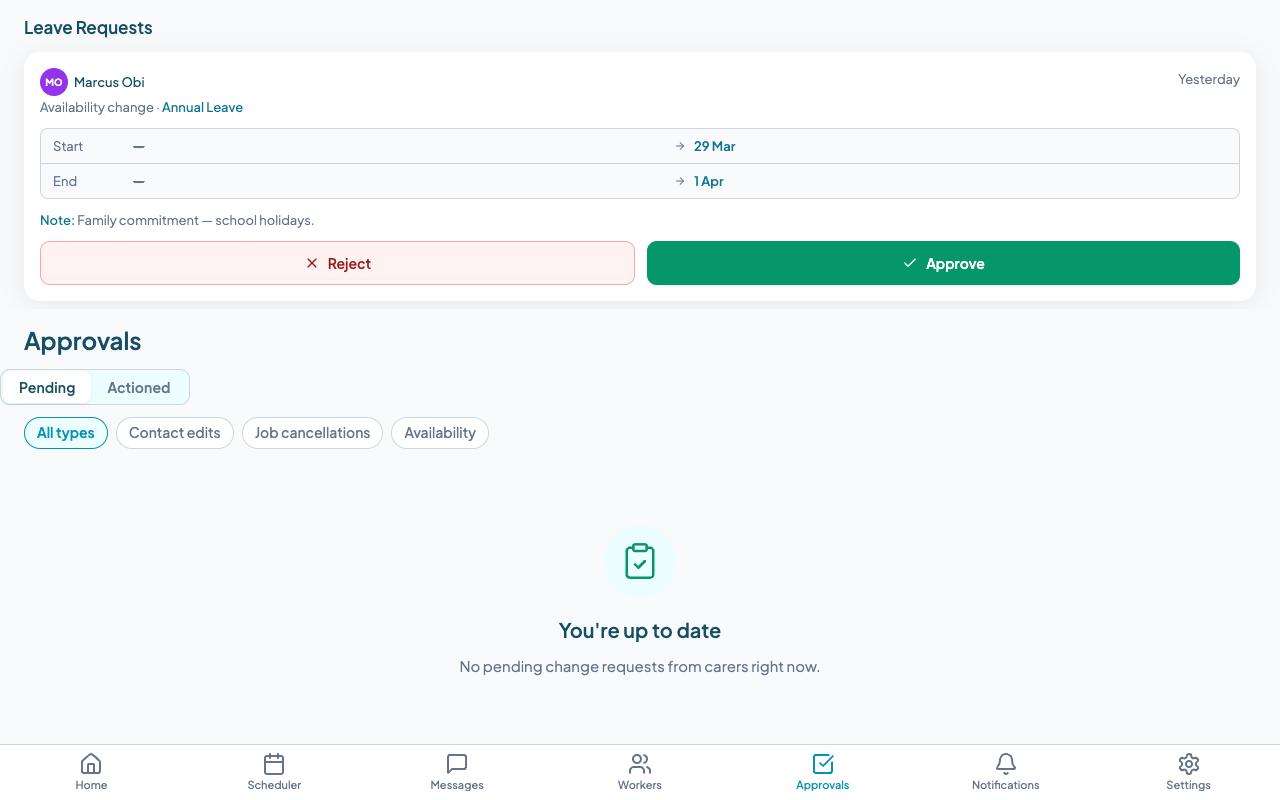
Each leave request shows:
- The carer's name
- The leave type
- The date range requested
- The optional note from the carer
- How long the request has been waiting
Tap a request to open the detail view and take action.
Approving a request
- 1.Open the leave request from the Approvals queue.
- 2.Review the date range and any notes from the carer.

- 1.Check the scheduling board (separately) to see whether the carer has jobs assigned during the requested leave period.
- 2.Tap Approve.
The carer is notified that their request has been approved. The leave period is recorded against their profile and shown as a blocked period on the scheduling board.
CareOS does not automatically cancel or reassign jobs that fall within an approved leave period. You will need to handle any affected jobs manually.
Rejecting a request
- 1.Open the leave request from the Approvals queue.
- 2.Tap Reject.
- 3.Enter a rejection reason in the field that appears. This is required -- the carer will see this reason in their app.
- 4.Tap Confirm Rejection.
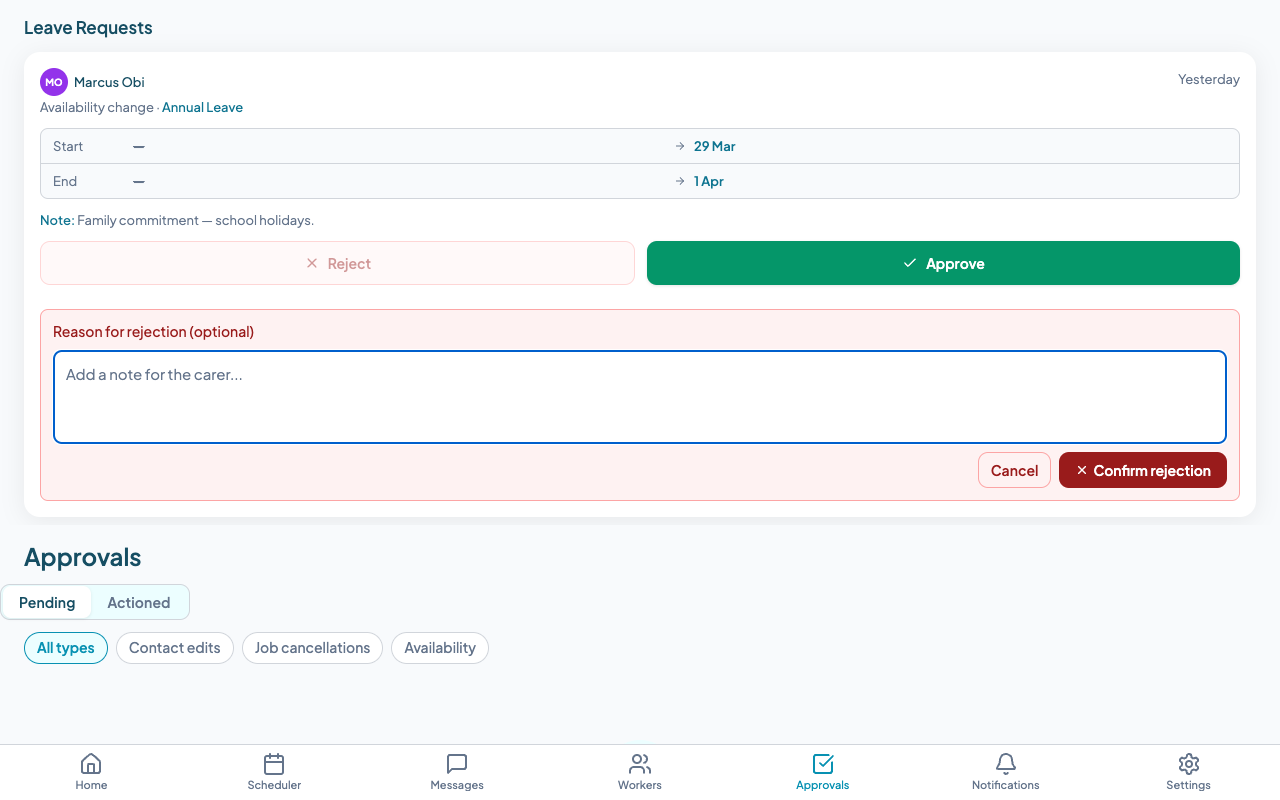
The carer is notified that their request was not approved, along with the reason you entered. The request moves to "Rejected" status in their Leave tab.
What happens to jobs during approved leave
CareOS does not automatically cancel or reassign jobs that overlap with an approved leave period. This is intentional -- coordinators are best placed to decide how to handle each affected shift.
After approving a leave request, you should:
- 1.Open the scheduling board and filter by the carer's name to see their jobs during the leave period.
- 2.For each affected job, decide whether to reassign to another carer, leave it unassigned for reallocation later, or mark it as cancelled if the service is not being delivered.
- 3.Contact the participant or their family if the change affects their support arrangements.
Approved leave periods are displayed as a blocked row on the scheduling board, making it easy to spot conflicts when planning.
Frequently asked questions
Can a carer cancel a leave request after it's been approved? Not through the app. If an approved leave period needs to be cancelled, the carer should contact their coordinator, who can remove the leave record from the carer's profile.
Can a coordinator submit a leave request on behalf of a carer? Not through the leave request workflow. Coordinators can block dates on the scheduling board directly, which achieves a similar result for rostering purposes.
Will carers be notified of the decision? Yes. Carers receive a push notification when their request is approved or rejected. They can also see the current status of all their requests in their Leave tab.
How far in advance can carers submit leave requests? There is no system limit on how far in advance a request can be submitted. Your organisation's leave policy determines what is appropriate.
Questions? Contact our support team or sign up to try CareOS free.
Related articles
Approvals and requests
How carers submit requests and how approvers manage them in the Approvals queue.
Using the Scheduler Board
Navigate the drag-and-drop scheduling board to roster carers and manage your week.
Managing your availability
Set your regular working hours and request leave through the Teiro app.