Running a Billing Run and Reconciling Payments in Teiro
A short video walkthrough of a real billing run in Teiro: picking up held and verified services, reviewing every claim line, drafting the NDIA claim file, and reconciling payments, all from one screen.
A billing run in Teiro turns verified services into claim lines. A billing officer picks up held and verified services for the period and reviews every line, then Teiro groups them by funding channel and drafts the NDIA bulk payment request. The provider uploads that file through the NDIA provider portal, and payments reconcile back against the same run.
Watch the walkthrough
This is what a routine billing run looks like once your service agreements and participant funding details are already set up: from "ready to bill" to a drafted claim file and reconciled payments, in one flow.
 0:32
0:32Watch
Running a Billing Run and Reconciling Payments in Teiro
A short walkthrough of a real NDIS billing run in Teiro: picking up held and verified services, reviewing every claim line, grouping lines by how each plan is funded, drafting the NDIA claim file, and reconciling payments, all from one screen.
Watch the walkthrough
Picking up held and verified services, creating a run, reviewing claim lines grouped by how each plan is funded, drafting the NDIA claim file, and reconciling payments.
The steps below walk through the same run screen by screen, for anyone who would rather read than watch, or wants the detail behind a particular screen.
Step 1: See what is ready to bill
Everything starts in the Billing Hub, under Billing. Three tabs cover the whole billing cycle: Runs, Reconciliation, and Participants. A status strip across the top shows what is waiting on you right now: Ready to Bill (verified services in the period that have not yet been added to a run), Held (lines carried over from a previous run), Submitted (claims and invoices sent, awaiting payment), and Paid this month.
This is also where every past billing run lives, with its period, line count, value, and status. For the full feature rundown, see how billing works in Teiro.
Step 2: Pick up held services and verified services
Tap New billing run and Teiro brings two groups of services into view. First, any held lines left over from a previous run: unresolved lines are offered to the next run automatically rather than dropped, and you choose which of them to bring in. Second, the verified services delivered in the period you are billing for, ready to be added.
Only verified services reach this list. A shift that is complete but not yet verified will not appear here until a coordinator or billing officer reviews and verifies it. If you are wondering why a shift you know is finished has not shown up in a run, this is almost always the reason: check whether it is still sitting in "completed, awaiting verification" before you check anything else. That verification step starts at the door -- see how a support worker checks in and out of a job for where the underlying attendance evidence comes from.
Nothing gets billed without being reviewed as a line first.
Step 3: Create the run and review every line
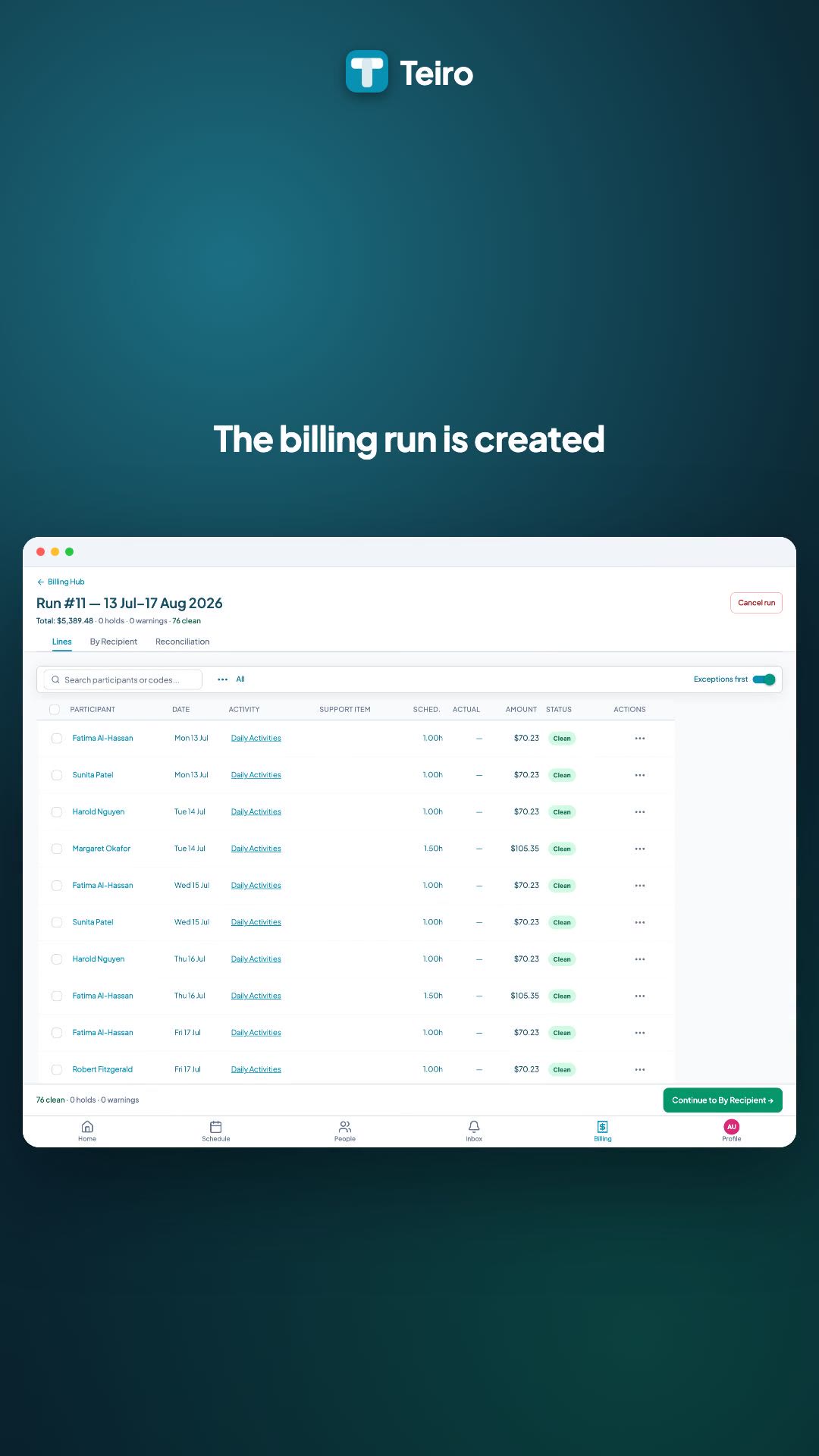
Tap Create billing run and Teiro builds the line list: one row per billable service, with the participant, date, support item, amount, and a status. Lines with a problem sort to the top as exceptions, each with a plain-English hold reason, so you see what needs attention before you see anything else.
Holds do not block the run. A billing officer with 40 clean lines and 3 holds can bill the 40 clean lines right away; the 3 held lines simply do not go into a claim or invoice until they clear. A held line gives you three options: Recheck it once the underlying issue is fixed, hold it for the next run if it needs more time, or remove the line entirely.
Be careful with "hold it for the next run." A claim has to sit inside the participant's plan dates, and NDIS funding does not roll over once a plan ends. A line parked run after run does not just get later, it can become unclaimable altogether. Treat a line that has already been held once as something to resolve, not something to park again by default.
If you want the detail on exactly what triggers a hold and how to clear each one, see why NDIS claims get held before submission.
Cancelled services turn up here too, not just completed ones. A real fortnight is rarely all delivered shifts. A cancelled service appears as a line like any other, Teiro checks it against the short-notice cancellation rules, and anything that does not qualify is held rather than billed.
Step 4: Grouped by how each plan is funded
The By Recipient step takes every clean line and groups it by funding channel. Management type belongs to the funding for a given support category, not to the participant as a whole, so this grouping happens line by line rather than participant by participant. A participant can have their core supports agency-managed and their capacity building plan-managed at the same time, and their lines will correctly split across two channels in the same run, which is by design rather than a quirk to work around. Lines funded through the NDIA collect under the NDIA channel, ready for a claim file. Lines funded through a plan manager or by the participant themselves collect separately and are routed to an invoice instead, addressed to the plan manager or the participant.
The video above only shows the NDIA channel, because every billable line in that run happened to be agency-managed on the day. The same run handles all three funding types side by side when they are present. If you are setting up billing for plan-managed participants, Billing Plan-Managed NDIS Participants covers what is different, and the plan-managed invoice generator is useful if you want to see the invoice format ahead of time.
Step 5: One tap drafts the claim file
For the NDIA channel, one tap on Draft CSV generates the claim file, what NDIA calls a bulk payment request (BPR), from every clean line in that group. The channel updates to show it has been drafted, with a Download and Send menu.
Drafting the file in Teiro is not the same as submitting it. Teiro prepares the claim file in the bulk payment request format NDIA expects. You download it and upload it through your NDIA provider portal yourself. This claim path is only open to registered NDIS providers; if your organisation is unregistered, every participant's billing runs through the invoice channel described above instead. Our NDIS bulk payment request tool is a useful reference if you want to check a file's structure before uploading it.
Step 6: Payments reconcile in the same place
How you reconcile depends on the channel, because agency-managed and invoiced lines come back through genuinely different paths.
For the NDIA channel, once NDIA returns a payment result file, go to the Reconciliation tab, either on the Billing Hub or on the run itself, and import it. Teiro matches each payment back to the claim line it belongs to and sorts out what needs attention, starting with the item that matters most:
- Rejected lines, where NDIA has rejected the line outright with a reason code. This is unpaid work and the first thing a billing officer should check.
- Short payments, where the line was paid but for less than was claimed.
- Amount mismatches, where the paid amount does not match what was submitted.
- Unmatched lines, where the result file contains a payment with nothing in Teiro to match it to.
Matched lines that were paid in full move to Paid status automatically.
For plan-managed and self-managed lines, there is no equivalent results file to import. Plan managers pay by EFT and send a remittance advice in their own format, referencing your invoice number rather than any NDIA claim reference, so tracking is invoice-based: you mark an invoice paid once you can see the payment land against it. Self-managed participants often send no remittance at all. Plan-managed receivables in particular need active follow-up, because an unpaid invoice will not surface itself the way a rejected NDIA line does.
For a closer look at working through an NDIA reconciliation file, see the NDIS payment reconciliation guide. If a line has come back rejected, NDIS Bulk Payment Requests: Why Batches Reject covers the common reason codes.
Frequently asked questions
Does Teiro submit the claim to NDIA automatically? No. Teiro prepares the claim file in the bulk payment request format NDIA expects. You download it and upload it through your NDIA provider portal yourself.
What happens to a service that is not ready to bill yet? It simply is not offered as a line yet. Only completed, verified services appear as billable in a run. Anything still awaiting verification stays off the run until it is ready.
Can one run produce both an NDIA claim file and invoices? Yes. The By Recipient step groups lines by funding channel, so a single run can draft an NDIA claim file for agency-managed lines and generate invoices for plan-managed or self-managed participants at the same time.
Where do I go if a line will not clear a hold? Open the line to see the specific reason. Most holds trace back to something on the participant's service agreement or a missing attendance record. Why NDIS claims get held before submission walks through the common causes and how to resolve each one.
Ready to see a billing run against your own participants and rates? Book a demo or sign up free for organisations with 5 or fewer active users.