
Offering an unassigned service to your team
How to offer an unassigned service to a tier of eligible carers instead of assigning one directly or ringing around, where to find the button, and why the default tier can look empty for a new client.
When a service doesn't have a carer yet, assigning one directly isn't the only option. Teiro can put the service in front of a tier of eligible carers instead and let someone put their hand up, rather than you working down a phone list one call at a time.
Watch the walkthrough
 0:46
0:46Watch
How to Offer an Unassigned Service to Your Team in Teiro
A coordinator offers an unassigned service to a tier of eligible carers instead of ringing round, previews exactly who will see it before sending, and reviews who accepted once responses come in.
Watch the walkthrough
Where to find it
- 1.Open the unassigned service.
- 2.Tap Assign Worker.
- 3.Below the candidate list, under the or divider, tap Offer to team.
Offering only works on a service that's already been saved and doesn't have anyone assigned to it. An offer is its own record attached to the service, so there's nothing to offer until the service exists -- you can't offer one while you're still creating it. If you assign a carer while creating the service, it saves already assigned, and Offer to team won't be available for it afterwards either.
If the button is greyed out on an existing service, it's one of two reasons, and Teiro tells you which: This service is already assigned, or This service already has an open offer (you can't run two offers on the same service at once).
If you can't see the button at all
Two things gate it. You need the service_offer.send permission, granted by default to admin, coordinator and scheduler roles, not to carers. And the service's type needs to support offers in the first place -- that's set up once for your organisation, not per service. If it's missing everywhere, check with whoever administers your Teiro roles.
Choosing who hears about it
Tap Offer to team and pick a tier:
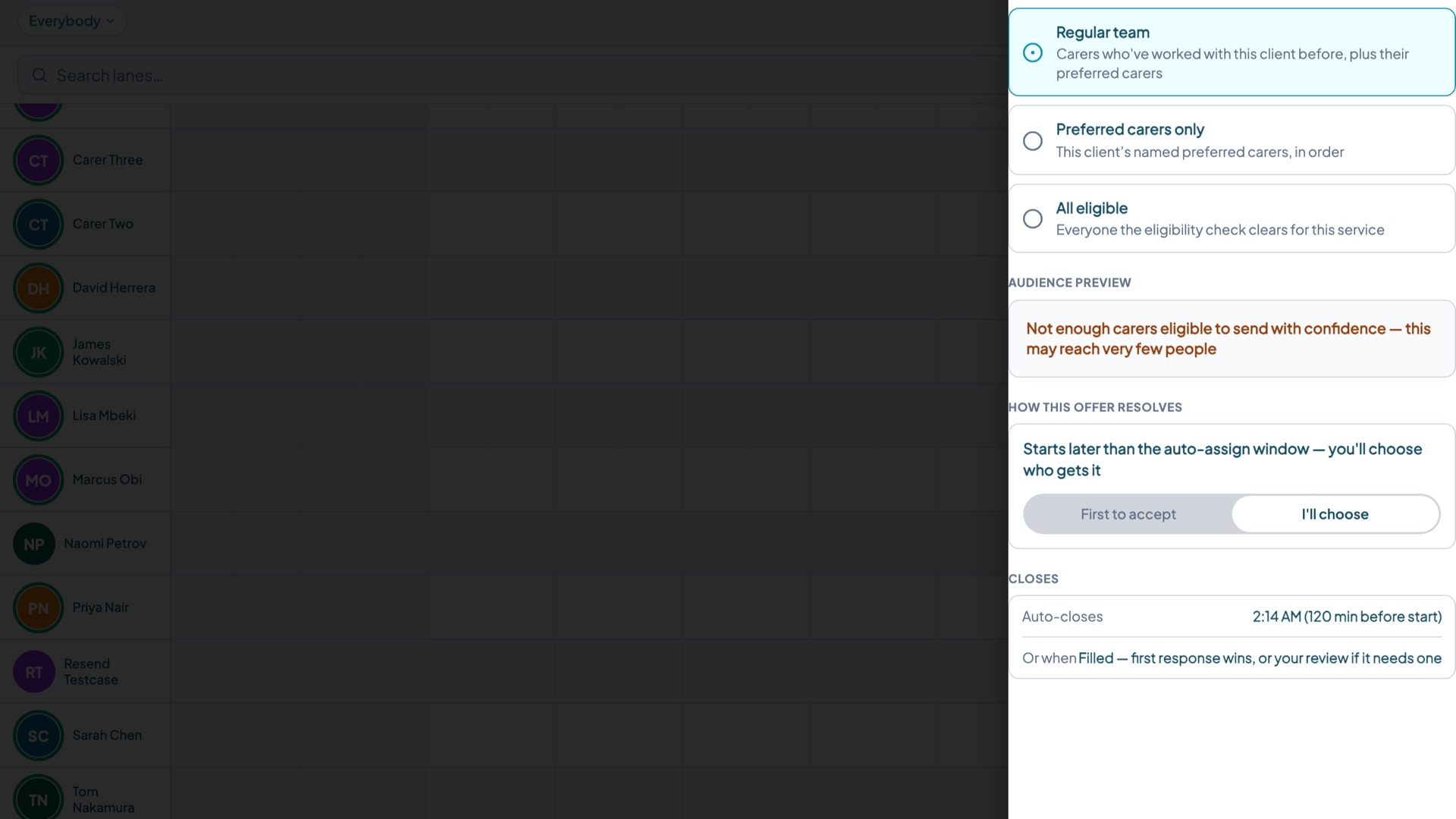
- Regular team -- carers who've already completed a service with this client before, plus anyone on their preferred carers list.
- Preferred carers only -- just the client's named preferred carers.
- All eligible -- everyone the usual eligibility check clears for this service.
Some clients' care plans require continuity with people they already know. For those clients, only Regular team is available, and the other tiers are greyed out with the reason shown rather than simply missing.
Check the audience preview before you send
Before anything goes out, Teiro shows how many carers are actually eligible for the tier and service you've picked, how many are excluded because they're already booked elsewhere or fail the usual eligibility check, and how many aren't shown at all for reasons specific to this client -- a safeguarding restriction, a preference exclusion, or simply not being in the tier you chose. Teiro tells you an exclusion applies without ever naming who or why. If the eligible pool is small, you'll see that there are enough carers to send to rather than an exact headcount.
How an offer gets filled
Every offer resolves one of two ways, and the panel shows you which one applies before you send:
- First to accept -- used close to the start time. Whoever accepts first is assigned automatically.
- Coordinator picks -- used further out. Everyone who accepts goes onto a list, and you choose who gets it once you're ready.
You can override the suggested mode before sending.
Before you send: the default tier can look empty, and that's not a fault
Regular team is selected by default, and it only includes carers who've already completed a service with this specific client, plus anyone named as one of their preferred carers. If your organisation is new, or this particular client is new, that pool can genuinely be nobody -- not because anything is broken, but because nobody has worked with them yet to qualify.
Check the audience preview before you send. If it shows zero or very few eligible carers on Regular team, widen to Preferred carers only or All eligible rather than sending anyway and wondering why nothing came back.
How carers are told
Offers reach carers as an app notification only -- Teiro doesn't send an SMS or email for a shift offer. A carer needs the Teiro app installed with notifications turned on for it to show up on their Open Shifts list and home screen.
What a carer sees
Opening the offer shows the date, time, duration, suburb, and the client's first name -- enough to decide whether to accept. They see the client's full name only if they've worked with them recently or are on their preferred carers list. Clinical notes and care plan details aren't shown at this stage; those come through once the carer is actually rostered on.
A carer only sees their own offer and its outcome, not how many other people were offered the same service or how they responded.
Reviewing acceptances and assigning
If the offer resolves by coordinator pick, open it from your Open Offers list once responses start coming in. Everyone who accepted is listed in the order they responded -- select one and assign the service to them. Everyone who accepted is told the outcome once you decide, not just the carer who ends up with it.
Frequently asked questions
Can I offer to one or two specific carers, rather than a whole tier? Not through this panel yet. The three tiers above are what's available today.
What happens if nobody accepts? The offer closes with no acceptances and the service stays unassigned, the same as if it had never been offered. From there you can widen the tier, assign someone directly, or call around.
Does offering skip the usual safety and eligibility checks? No. The audience is filtered before the offer is sent, so a carer excluded from a client never sees it. If an acceptance would still trip a warning -- a scheduling clash, a missing competency, not enough rest since their last shift -- it's held for you to review rather than assigned automatically.
See the Service Offers feature page for the full picture of how the audience preview, resolution modes, and carer-facing disclosure fit together.
Ready to see it against your own roster? Book a demo or start free for up to five active users.
Related articles
Using the Scheduler Board
Navigate the drag-and-drop scheduling board to roster carers and manage your week.
Assigning a carer to a job
Find the right carer for a job using availability, qualifications, and preference matching.
Using the assignment panel
How the smart assignment panel works, what ELIGIBLE and MISSING QUALIFICATIONS mean, and how to assign a worker with an override.