
How to Offer an Unassigned Service to Your Team in Teiro
A short video walkthrough of offering an unfilled service to a tier of eligible carers in Teiro: previewing exactly who will see it, choosing how the offer resolves, and reviewing acceptances before assigning.
When a service is unassigned, a coordinator can offer it to a tier of eligible carers from the Assign Worker panel, instead of assigning one carer directly or working the phone list one call at a time. The panel shows exactly how many carers are actually eligible before anything is sent, and once responses come in, the coordinator reviews who accepted and assigns the service.
Watch the walkthrough
 0:46
0:46Watch
How to Offer an Unassigned Service to Your Team in Teiro
A coordinator offers an unassigned service to a tier of eligible carers instead of ringing round, previews exactly who will see it before sending, and reviews who accepted once responses come in.
Watch the walkthrough
Opening the Assign Worker panel on an unassigned service, choosing who hears about it, checking the audience preview, sending the offer, and reviewing acceptances once carers respond.
The steps below walk through the same flow screen by screen, for anyone who would rather read than watch.
Step 1: Open the Assign Worker panel
Offer to team is not a separate screen. It sits inside the same Assign Worker panel a coordinator already opens on an unassigned service, alongside the usual candidate list -- a second action for putting the service in front of a group of carers rather than choosing one directly.
Step 2: Choose who hears about it
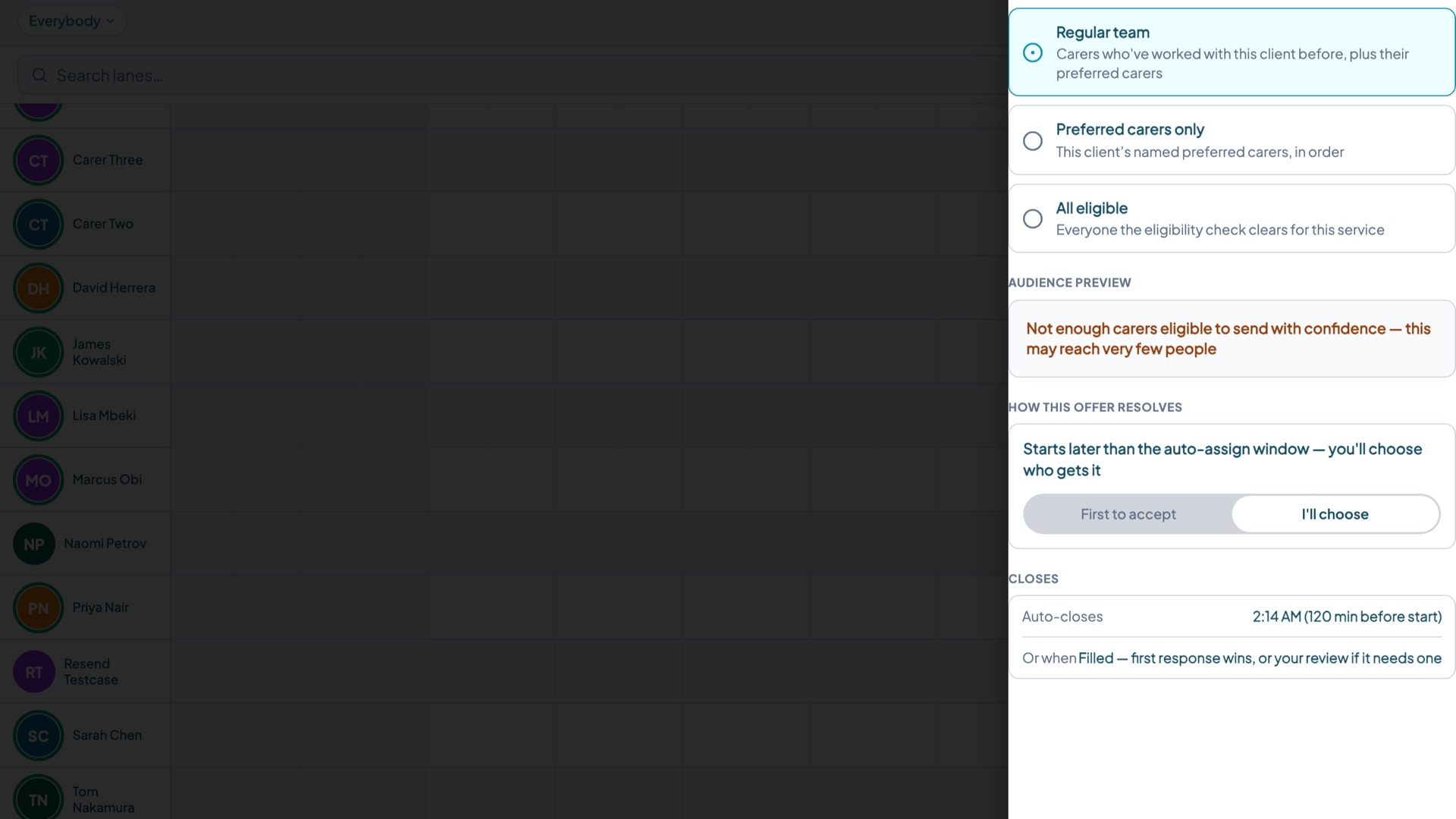
Tapping Offer to team opens a choice of three tiers:
- Regular team -- carers who have worked with this client before, plus anyone on the client's named preferred list
- Preferred carers only
- All eligible
Regular team is the default. It is worth knowing what that means on a new account: it is built from carers who have already completed a service with that client, so for a brand new organisation, or a client nobody has worked with yet, it can be empty. If an offer looks like it reached nobody, widen the tier.
Where a client's care plan requires continuity, only Regular team is available for that client, and the other tiers show why they are unavailable rather than simply disappearing -- a coordinator should never wonder whether a tier is missing by mistake.
Step 3: Check the audience preview before you send
Before the offer goes anywhere, the panel shows an audience preview: how many carers are actually eligible, how many are already booked elsewhere at that time, and how many are not shown at all. Carers who are not shown are excluded by that client's safeguarding or preference settings -- Teiro states that an exclusion applies without ever naming who it is or why.
This is the difference between a group text and an offer: "I think about six people can cover this" becomes a real, checked number before the coordinator commits to sending anything. Where the eligible pool is very small, Teiro shows that there are enough carers to send to rather than an exact headcount, so a low number can't be narrowed down to a specific person.
Step 4: Pick how the offer resolves
Every offer resolves one of two ways, and the panel always shows which one applies and why before it can be sent:
- First to accept -- close to the start time, the first carer to accept gets the service
- Coordinator picks -- further out, the coordinator reviews everyone who accepted and chooses
A coordinator can override the suggested mode, but the panel never lets an offer go out without showing which mode it will resolve under. Carers see the same thing: the mode travels with the offer everywhere it appears, so nobody mistakes an offer they've put their hand up for as a shift they already hold.
Step 5: What a carer sees before accepting
An open offer shows up on the carer's Open Shifts list and home screen. Opening it shows the date, time, duration and suburb, and the client's first name -- enough to genuinely decide whether to accept. A carer only sees the client's full name if they've worked with that client recently or are on their preferred list; everyone else sees a first name and suburb, shown exactly the same way, not as a stripped-down or provisional version of the full detail. Clinical notes and care plan content are never shown at this stage -- they're shared once the carer is actually rostered on, not before.
Step 6: Reviewing acceptances and assigning
Once carers start responding, the coordinator's Open Offers list shows a live count against each one -- how many have accepted, how many are still awaiting a response. Opening an offer shows Review Acceptances: everyone who put their hand up, in the order they responded, ready for the coordinator to select one and assign. Everyone who accepted is told the outcome once a decision is made, not just the carer who ends up with the service -- something a group text never manages.
Where this fits, and where it doesn't
Offering to a tier of carers is built for the hours-to-days before a service, when there's genuinely time for people to see it and respond. For an urgent same-morning gap, the phone is still the faster option. It also isn't a marketplace: there's no bidding, no rates, and no negotiation. The organisation publishes fixed work, and a carer says yes or no.
Safety checks still apply underneath all of this. A carer excluded from a client is never shown the offer in the first place, and an acceptance that trips a warning -- a scheduling clash, a missing competency, too little rest since their last shift -- is held for the coordinator to review rather than assigned automatically.
See the Service Offers feature page for the full picture, alongside the rest of the scheduling board.
Frequently asked questions
Does offering to a team skip the usual safety and eligibility checks?
No. The audience is filtered before the offer is ever sent, so a carer who is excluded from a client never sees it. If an acceptance would still trip a warning -- a clash, a competency gap, insufficient rest since their last shift -- it's held for the coordinator to review rather than assigned straight away.
Can I offer a service to just one or two specific carers, rather than a whole tier?
Not through the Assign Worker panel today. The choice is between the three tiers above. If a tier is wider than what you need, assigning directly is still the quicker route for one or two people in mind.
Does a carer see how many other carers were offered the service, or who else accepted?
No. A carer sees only their own offer and its outcome. There's no visibility into how many other people were offered the same service or how they responded.
Can I choose exactly when an offer closes?
Not per offer. How long an offer stays open before it auto-closes is set at the organisation level, not chosen individually each time a coordinator sends one.
What happens if nobody accepts?
The offer simply closes with no acceptances, and the service stays unassigned -- the same as it would if nobody had been offered it at all. From there it's back to assigning directly, widening who the offer goes to, or picking up the phone.
This is one of a growing library of short Teiro walkthroughs -- see the full video library for what else is covered.
Ready to see it against your own roster? Book a demo or start free for up to five active users.