
How to Manage Your Schedule as a Care Coordinator in Teiro
A practical guide for care coordinators using the Teiro scheduling board — creating shifts, assigning workers, handling changes, and keeping the roster running smoothly.
Managing the Schedule as a Care Coordinator in Teiro
 0:29
0:29Watch
Using the Scheduling Board as a Care Coordinator
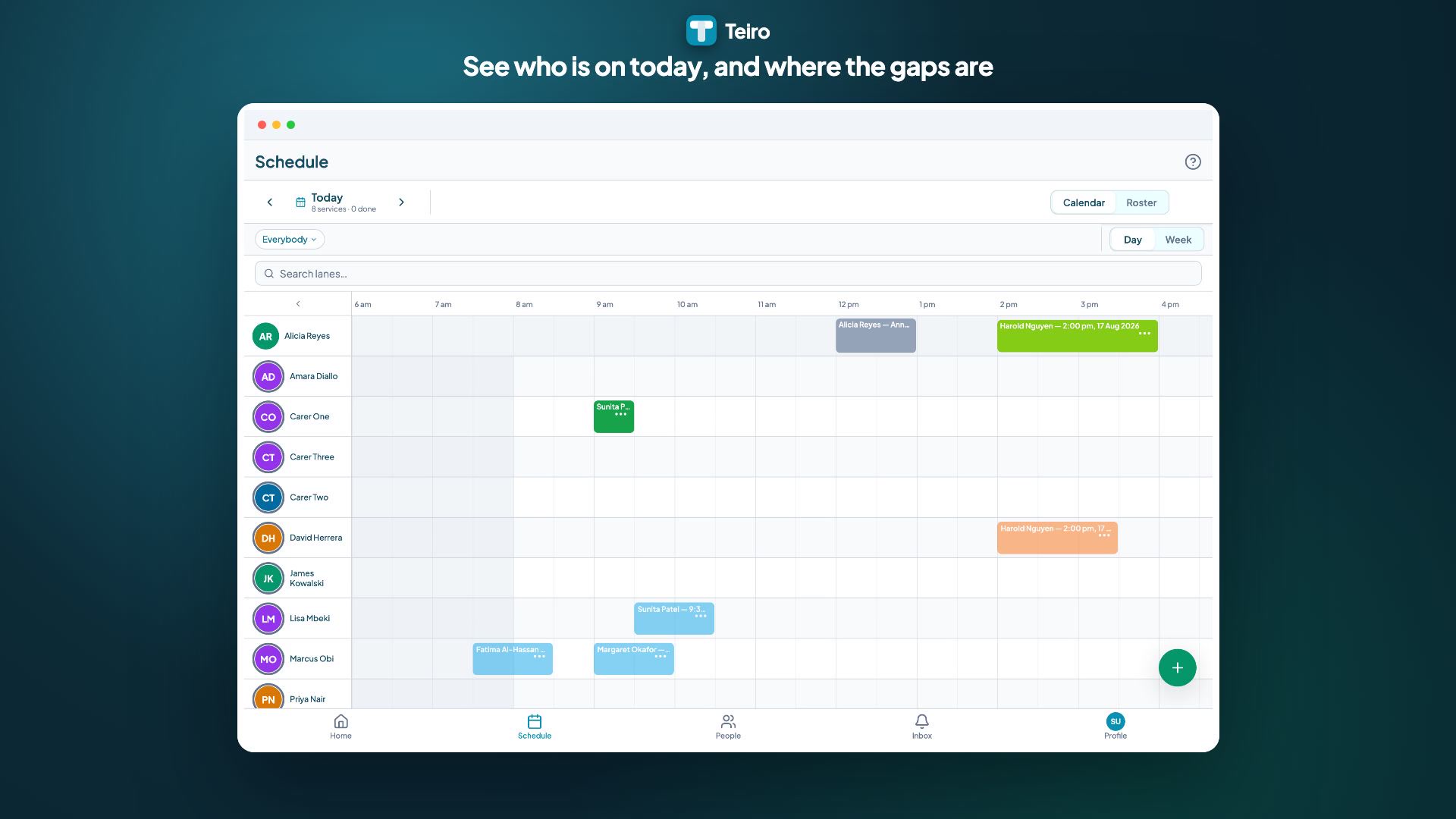
A tour of the Teiro scheduling board: a week of care at a glance, seeing who is on and where the gaps are, assigning a worker from the availability panel, and moving a shift so the whole team sees it immediately.
Watch the walkthrough
This guide is for care coordinators and rostering managers who use Teiro to create and manage shifts. It covers the scheduling board, assigning workers, handling changes, and keeping track of what is happening across the day.
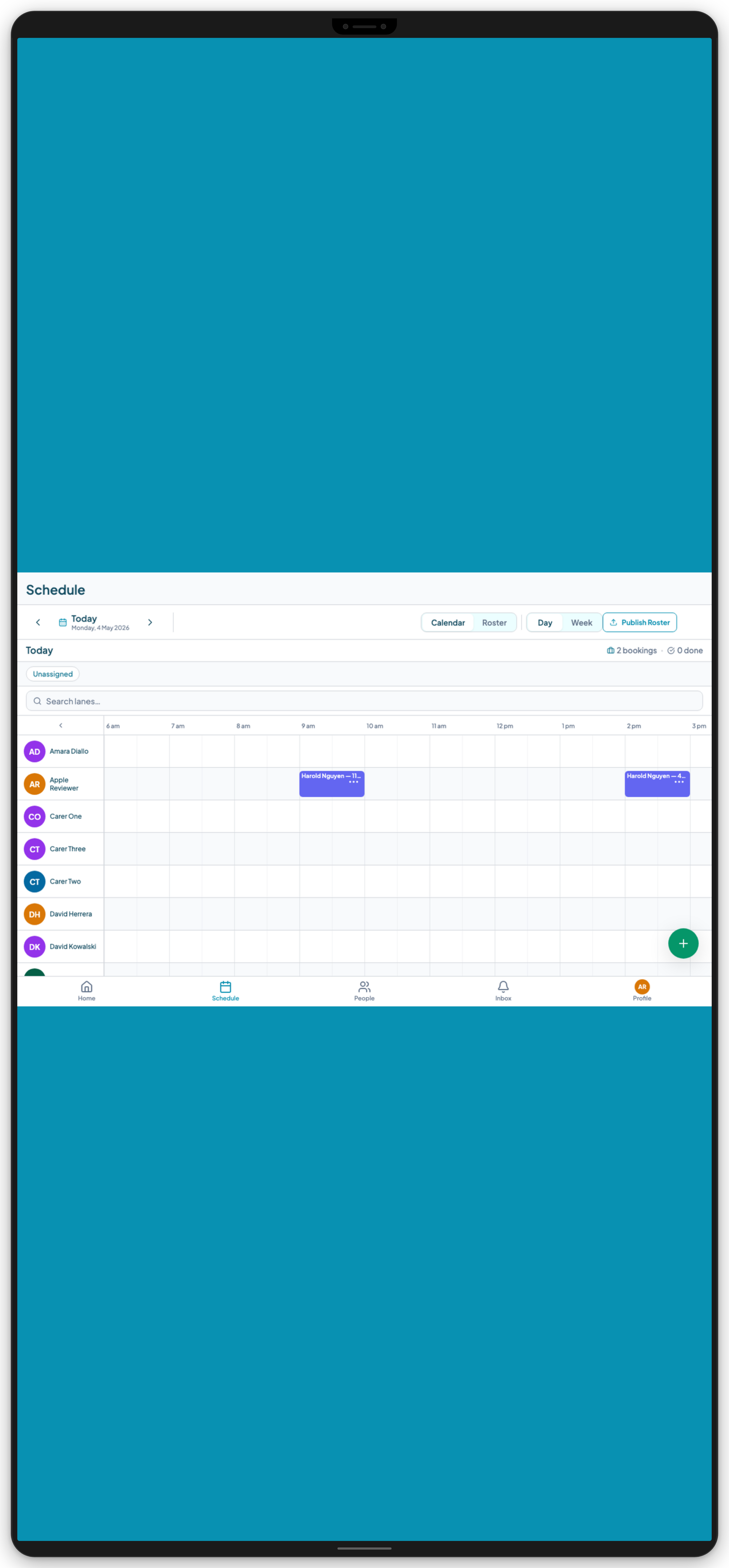
The scheduling board
The scheduling board is the central view for coordinators. Access it from the Schedule tab on the web platform or from the mobile app.
The board shows:
- Participants (rows): Each participant's scheduled visits across the selected date range
- Workers (filter): Filter the view by worker to see an individual's full roster
- Date navigation: Move forward or back by day or week
Each shift block on the board shows the assigned worker, the start and end time, and the shift status (scheduled, in progress, completed, or requiring attention).
Creating a shift
To create a new shift:
- 1.Tap or click an empty slot on the participant's row on the date you want
- 2.Select the shift type (visit, community access, group support, etc.)
- 3.Set the start time and end time
- 4.Assign a worker
When you select a worker, the platform checks:
- Whether the worker is available at that time (no conflicting shifts or recorded leave)
- Whether the worker holds the qualifications required for this participant's supports
- Whether any credentials are expired or approaching expiry
If a conflict or credential issue is detected, you will see a warning before you save. You can override the warning with a note, or select a different worker.
Tap Save to create the shift. The worker is notified in the Teiro mobile app.
Assigning workers to multiple shifts
For recurring supports, you can create a repeating shift pattern rather than manually creating each shift. When creating a shift, select Repeat and choose the frequency (daily, weekly, fortnightly) and the end date.
Changes to a recurring pattern apply from the selected date forward. Past shifts are not altered.
Handling same-day changes
When a worker calls in sick or a shift needs to change at short notice:
- 1.Find the affected shift on the scheduling board
- 2.Tap the shift to open the detail view
- 3.Tap Reassign and select a replacement worker
The platform checks the replacement worker's availability and qualifications. The original worker is notified that the shift has been removed. The replacement worker receives a notification immediately.
For urgent changes, you can also message the worker directly from the shift detail view. The message is logged in the activity feed.
Monitoring the day in real time
The scheduling board updates in real time as workers check in and check out. Shift status changes automatically:
- Scheduled: shift is upcoming, worker has not yet checked in
- In progress: worker has checked in
- Completed: worker has checked out and shift notes have been submitted
- Attention required: shift time has passed without a check-in, or notes have not been submitted
Any shift showing Attention required warrants a follow-up with the assigned worker.
Reviewing shift notes and incident reports
After each completed shift, the worker's shift notes appear in the participant's record under the Activity tab. You can read them from the web platform or the mobile app.
Incident reports submitted during or after a shift appear in the Incidents section of the participant's record and in the organisation-level incident queue. Review and action incident reports promptly in line with your NDIS incident management obligations.
Worker qualifications and credential alerts
The Teiro platform tracks qualification expiry dates for every worker. When a credential is approaching expiry, the relevant coordinator and the administrator receive an alert.
Workers with expired credentials are flagged on the scheduling board. The platform will warn you if you attempt to assign an uncredentialled worker to a participant that requires that credential.
To update a worker's credentials, go to the worker's profile, navigate to the Qualifications tab, and update the expiry date once the renewed credential has been verified.
Getting more from the platform
- How to View Your Roster in the Teiro App — for support workers
- Support worker scheduling app guide — choosing and using scheduling tools in care
- NDIS rostering software — how Teiro is built for NDIS requirements
For a guided walkthrough of the scheduling board and setup for your specific organisation, book a demo at teiro.com.au/demo.
Book a demo to get your organisation started today.