
How to View Your Roster in the Teiro App
How support workers and carers can view their full shift schedule in the Teiro mobile app — today's shifts, the weekly roster, and individual shift details.
Viewing Your Roster in the Teiro App
Once you are logged in to the Teiro mobile app, you can see your full schedule — today's shifts, the week ahead, and the details of each visit. Here is how it works.
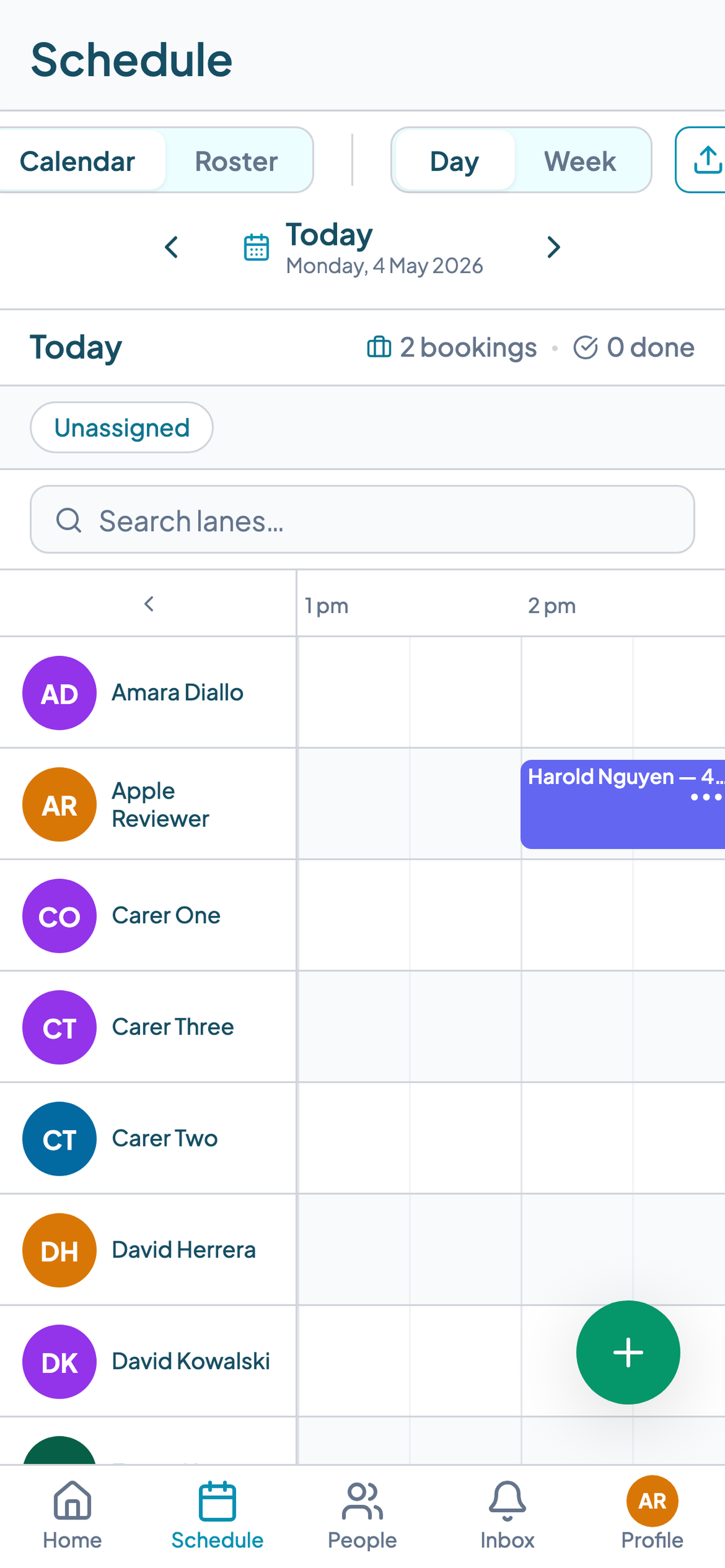
Your home screen
When you open the app, the home screen shows a summary of your day: shifts scheduled for today, any actions required (check-in confirmations, shift notes outstanding), and notifications from your coordinator.
Each shift on the home screen shows:
- The participant's name
- The shift start and end time
- The address
- Any alerts attached to the participant (health conditions, preferences, access instructions)
Tap any shift card to open the full shift detail.
The Schedule tab
For your full roster, tap the Schedule tab at the bottom of the screen. This view shows all shifts assigned to you across the current week.
Use the date row at the top to navigate forward or back by week. Tap a specific date to jump to that day's shifts.
Each shift in the Schedule view shows:
- Participant name and time window
- Location
- Support type (if configured by your coordinator)
Tap any shift to see full details.
Inside a shift
Tapping a shift opens the shift detail screen. Here you will find:
Participant details. Name, address, and any participant-level notes or health alerts your coordinator has recorded. This is the information you need before you arrive.
Support notes. Any instructions specific to this visit: what supports to deliver, how the participant prefers to be supported, and anything the coordinator has flagged for this shift.
Check-in and check-out. The buttons to record your arrival and departure. See how to check in and out of a job as a support worker for the full walkthrough.
Shift notes. After checking out, this is where you submit your notes on the visit.
If you cannot see a shift you are expecting
If a shift is missing from your schedule, the most likely reasons are:
- The shift has not yet been assigned to you in the rostering system. Contact your coordinator to confirm.
- You are looking at the wrong week. Use the date navigation in the Schedule tab to check other dates.
- Your app may need to refresh. Pull down on the schedule screen to trigger a sync.
If you can see the shift in one view but not another, try closing and reopening the app. If the issue persists, contact your coordinator or your organisation's Teiro administrator.
For coordinators: viewing the full scheduling board
If you are a coordinator or rostering manager, you have access to the full scheduling board, which shows all workers and all participants across any date range. This is covered in How to Manage Your Schedule as a Care Coordinator in Teiro.
Next step: how to check in and out of a job as a support worker.
For help getting set up from scratch, see How to Get Started with Teiro.