
How to Get Started with Teiro
A practical setup guide for new Teiro users — whether you are a support worker getting started with the mobile app or a coordinator setting up your organisation for the first time.
Getting Started with Teiro
Teiro has two sides: the web platform, used by coordinators, rostering managers, and administrators; and the mobile app, used by support workers and carers in the field. This guide covers both.
If you are a support worker
Your organisation's administrator or coordinator has already set up your account. You do not need to create one yourself.
Step 1 — Download the app
On iPhone: Search for "Teiro" in the App Store and install Teiro: Care Workforce App. For full instructions, see How to Find Teiro on the App Store.
On Android: Search for "Teiro" in Google Play and install Teiro: Care Workforce App. For full instructions, see How to Find Teiro on Google Play.
Step 2 — Log in
Open the app and enter your email address and password. These were provided by your coordinator or administrator when your account was created.
If you have not received your login details, contact your coordinator. They can resend your invitation or reset your password from the web platform.
Step 3 — Check your schedule
After logging in, your home screen shows today's shifts. Tap any shift to see the full details: participant name, address, support notes, and any health alerts relevant to that visit.
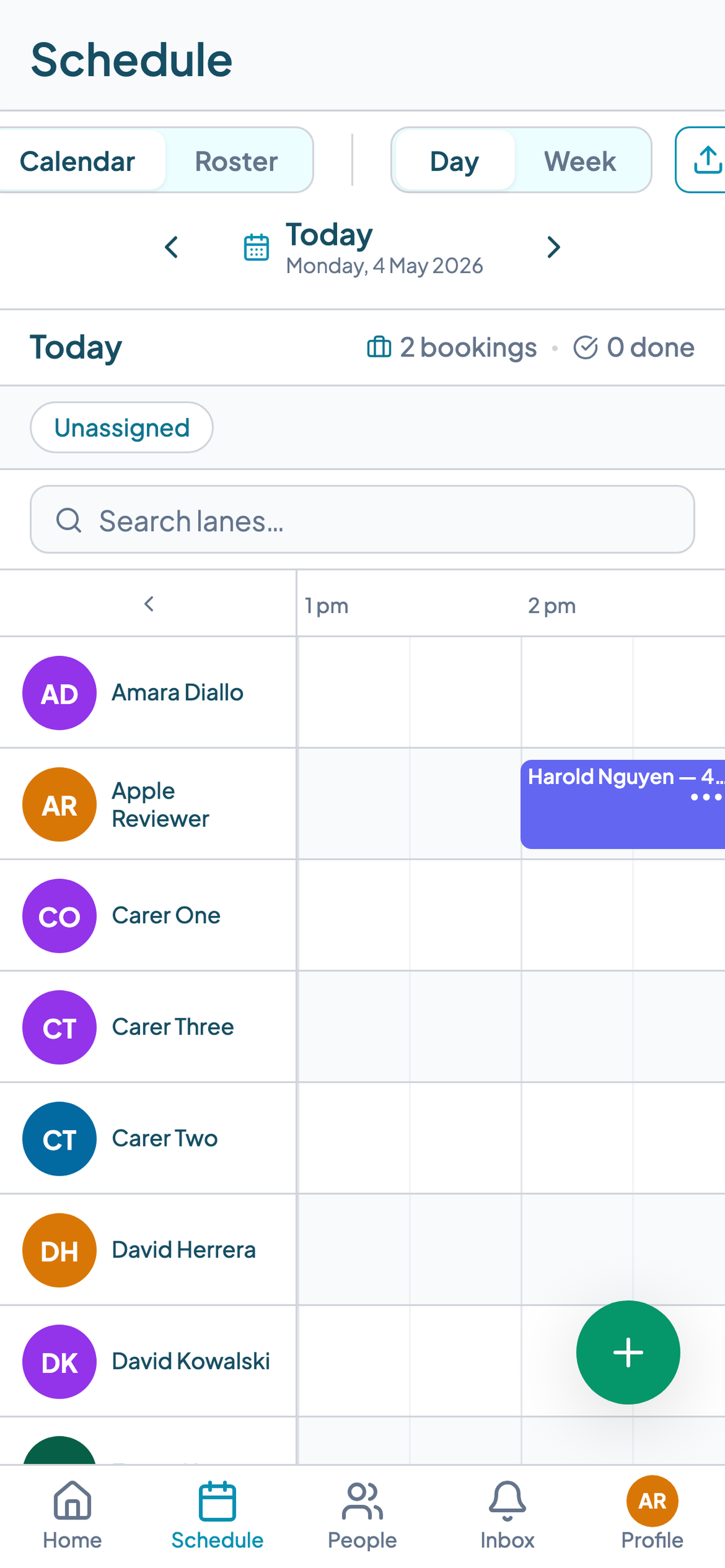
Use the Schedule tab to see your full weekly roster. See How to View Your Roster in the Teiro App for a full walkthrough.
Step 4 — Check in when you arrive
When you arrive at a shift, tap the shift on your home screen and tap Check in. The app will confirm your GPS location. Check-in is recorded in real time.
At the end of the shift, tap Check out from the same screen. See how to check in and out of a job as a support worker for the full walkthrough.
Step 5 — Submit your shift notes
After checking out, you will be prompted to submit shift notes. Fill in what supports were delivered, how the participant presented, and any observations. Tap Submit when done.
Your notes go directly to your coordinator, linked to the participant record and the shift.
If you are a coordinator or administrator
You set up your organisation and manage the platform for everyone else.
Step 1 — Create your organisation account
Go to teiro.com.au/demo and create your account. Enter your organisation's name and your contact details. No credit card is required for organisations with 5 or fewer active users.
Step 2 — Add your workers
From the web platform, go to People and add each worker's details: name, email address, role, and contact information. The platform will send them an invitation to set up their password and download the mobile app.
Step 3 — Add your participants
Go to Customers (or Participants) and create a record for each person your organisation supports. Add their NDIS plan details, support requirements, health alerts, and emergency contacts. These details are visible to workers assigned to their shifts.
Step 4 — Set up worker qualifications
For each worker, add the credentials they hold: NDIS Worker Screening clearance, First Aid, CPR, medication management authorisation, and any other relevant qualifications. Add the expiry date for each credential. The platform will alert you before credentials lapse.
Step 5 — Create your first roster
Go to the Scheduling board. Create shifts by selecting a participant, a date and time window, and an assigned worker. The platform will flag any conflicts: double-bookings, credential mismatches, or workers who are on leave.
Workers receive a notification when a shift is assigned to them. They can view it in the mobile app immediately.
Step 6 — Invite your team to download the app
Send workers the link to download the app. For iPhone: App Store. For Android: Google Play.
Their login credentials are the email address and password set during the invitation step.
Getting help
If you have a question during setup, use the Help section in the web platform, or browse the guides at teiro.com.au/help.
For a guided walkthrough tailored to your organisation, book a demo at teiro.com.au/demo. The team will walk through your specific setup — participant types, team size, rostering patterns, and compliance requirements.
Book a demo to get your organisation running today.