
Setting up client messaging in Teiro
Get client messaging running for your organisation - no personal phones, one platform number, and every message logged to the client record automatically.
Most care organisations end up with support workers texting clients from their own phones. It works in the moment, but it leaves your organisation with no record of what was said, and a client's mobile number sitting in a personal contacts app that you don't control.
Teiro's client messaging closes that gap without asking anyone to change their habits much. A support worker still just sends a text. The client still just receives a normal SMS and replies to it normally. The difference is what happens underneath: nobody's personal phone number is ever exchanged, and every message lands on the client's record the moment it sends or arrives.
This guide gets it running for your organisation. It takes a few minutes - there is nothing to buy or configure per organisation, because messaging shares one platform number across every organisation on Teiro.
How it works, in short
- One platform number. Every client on Teiro texts the same number. Your organisation's name appears in the message itself, so clients still know who they're hearing from.
- Carers never see a client's number, and clients never see a carer's. Support workers read and reply from inside the Teiro app during their visit. Clients reply by ordinary SMS.
- Coordinators can start a conversation directly from a client's record, choosing whether the message goes to the client or to a nominated family member.
- Every message is logged automatically to the client's timeline - no one has to remember to write it down afterwards.
Step 1: Check your workers have the mobile app
Client messaging for support workers happens inside the Teiro mobile app, during a visit. If your team is only using Teiro on the web so far, this is a good moment to get the app installed - see Setting Up Your Team and Rosters if you haven't invited your workers yet.
Step 2: Make sure client phone numbers are on file
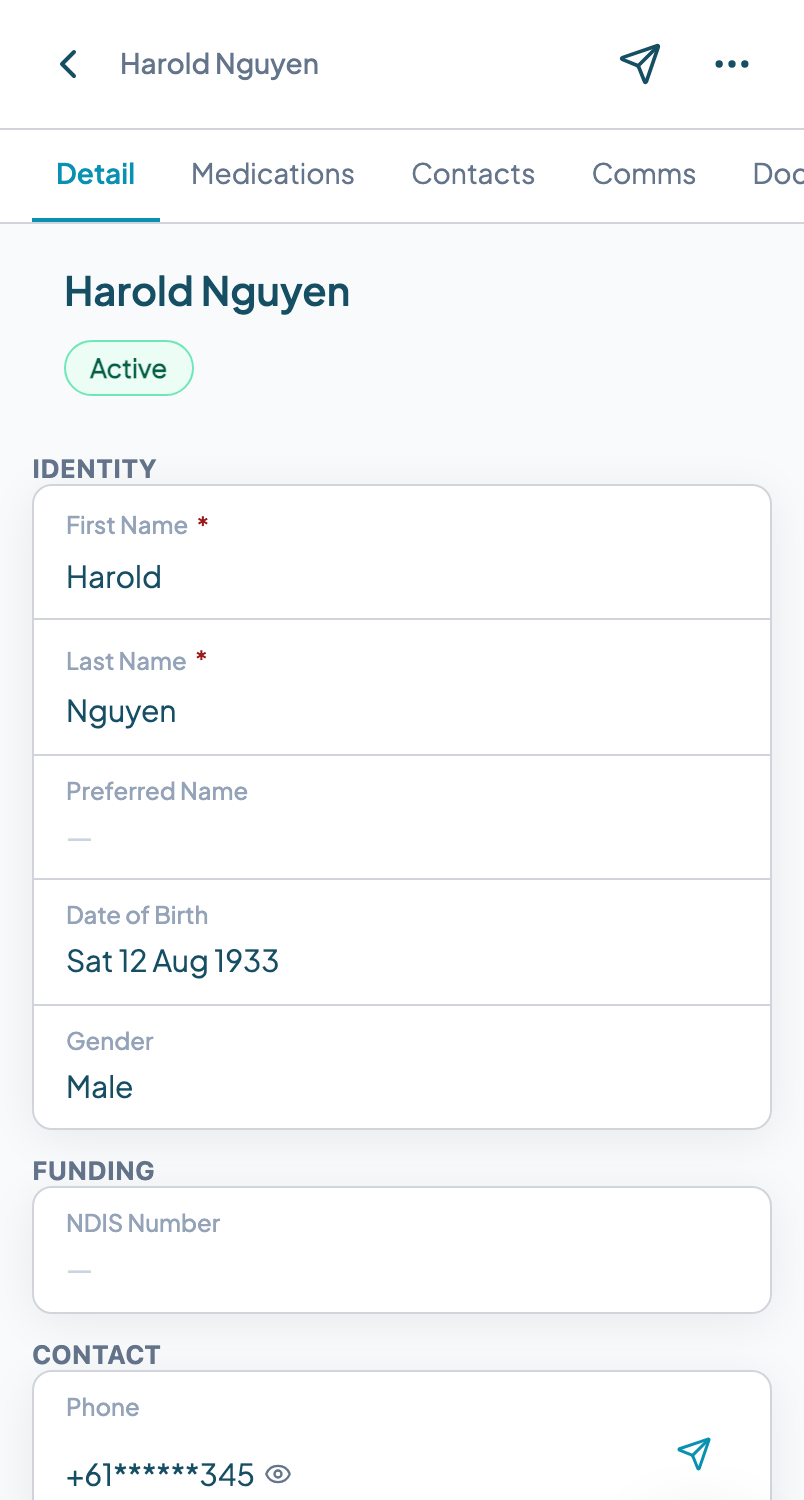
A client needs a phone number recorded on their record before anyone can message them, or a family contact with their own number recorded as a nominee. If you haven't added your clients yet, see Adding Your First Customer.
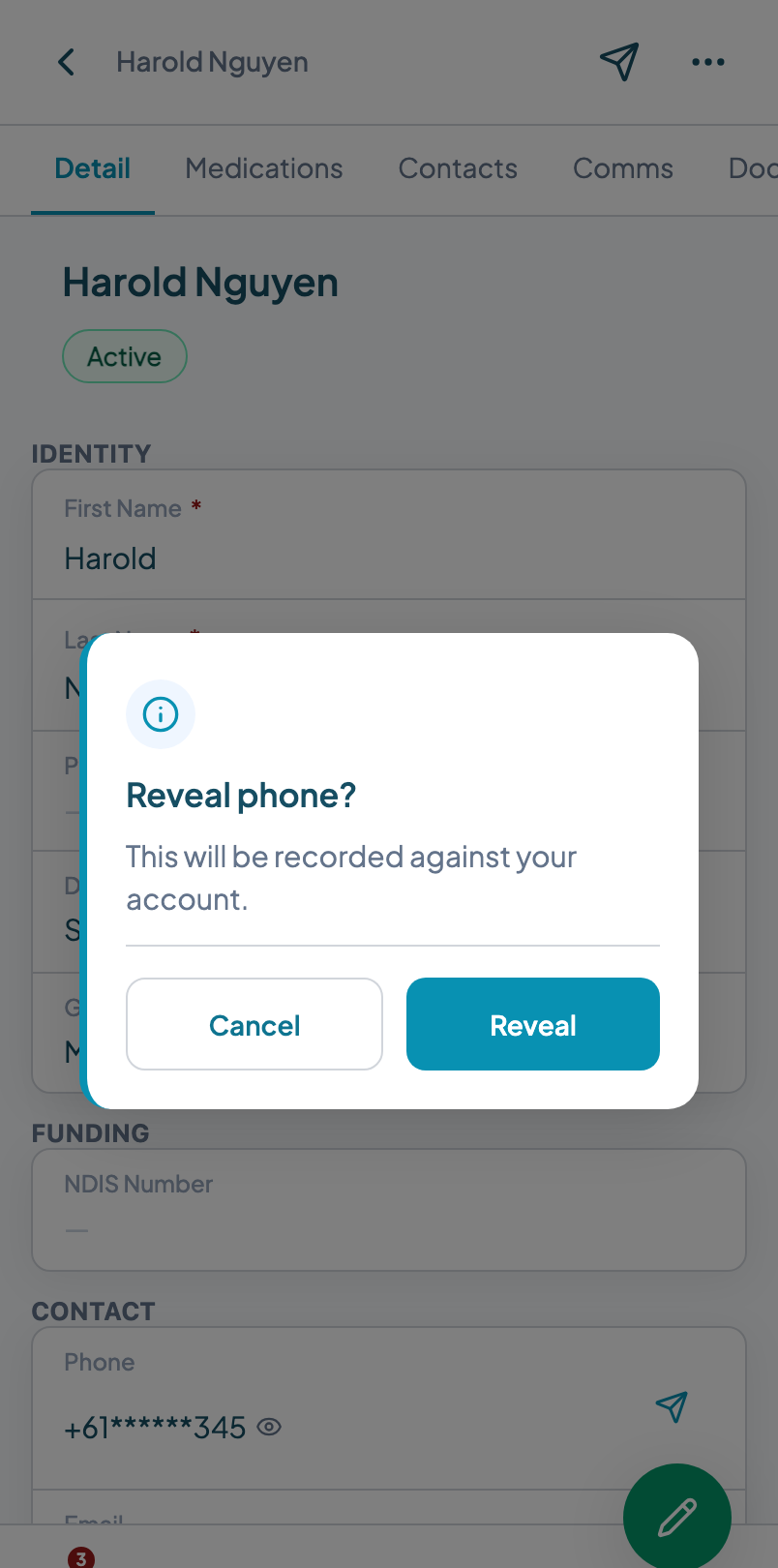
On the client record, the phone number is shown masked by default (something like 04** *** 678) even to staff with full access - this is intentional. Tapping to reveal the full number shows a warning and creates its own entry in the record's activity log. It's not hiding the number from your team; it's making a habit of the logged channel instead of jotting the number down somewhere else.
Step 3: Send your first message from a client record
Open any client record and look for the paper-plane icon in the header (coordinators and admins only - this isn't available to carers from the client record). Tapping it opens the composer.
The composer asks you to pick a recipient first - the client themselves, or a recorded family member or representative - before the message box becomes active. If the person you pick has no phone number on file, you'll see that explained instead of a working Send button.
The first time you message a particular contact, a disclosure preview shows the wording they'll receive: that messages are recorded for care quality, and how to opt out by replying STOP. After that first message, later ones skip straight to the composer.
Step 4: Know where a support worker sends from
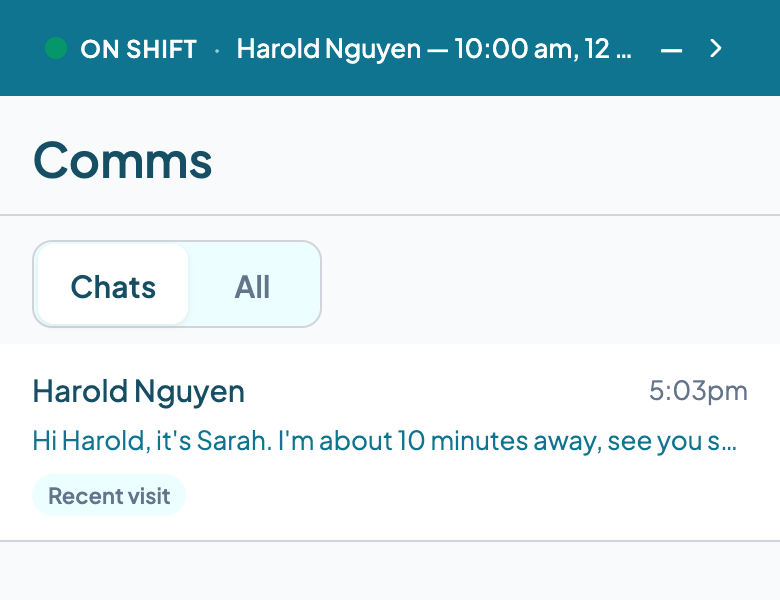
A carer doesn't use the paper-plane - they message from inside their visit. Once they're checked in (or their visit is coming up), a Comms action appears in the visit's action strip, next to Report Incident. Tapping it opens the same conversation thread, scoped to that client and that visit.
This is deliberate: the channel is for day-of logistics - running late, door codes, "I'm outside" - not an always-open line to a client. It opens around the visit and closes once the assignment ends. If a client texts back outside that window, they get an automatic reply pointing them to your organisation's on-call number instead of the message sitting unread on someone's day off.
Step 5: Check the client record shows the full history
Every message - whichever way it was sent - lands on the client's Comms tab automatically. Open a client record you've messaged and confirm you can see the full exchange there, timestamped, with delivery status on each outbound message.
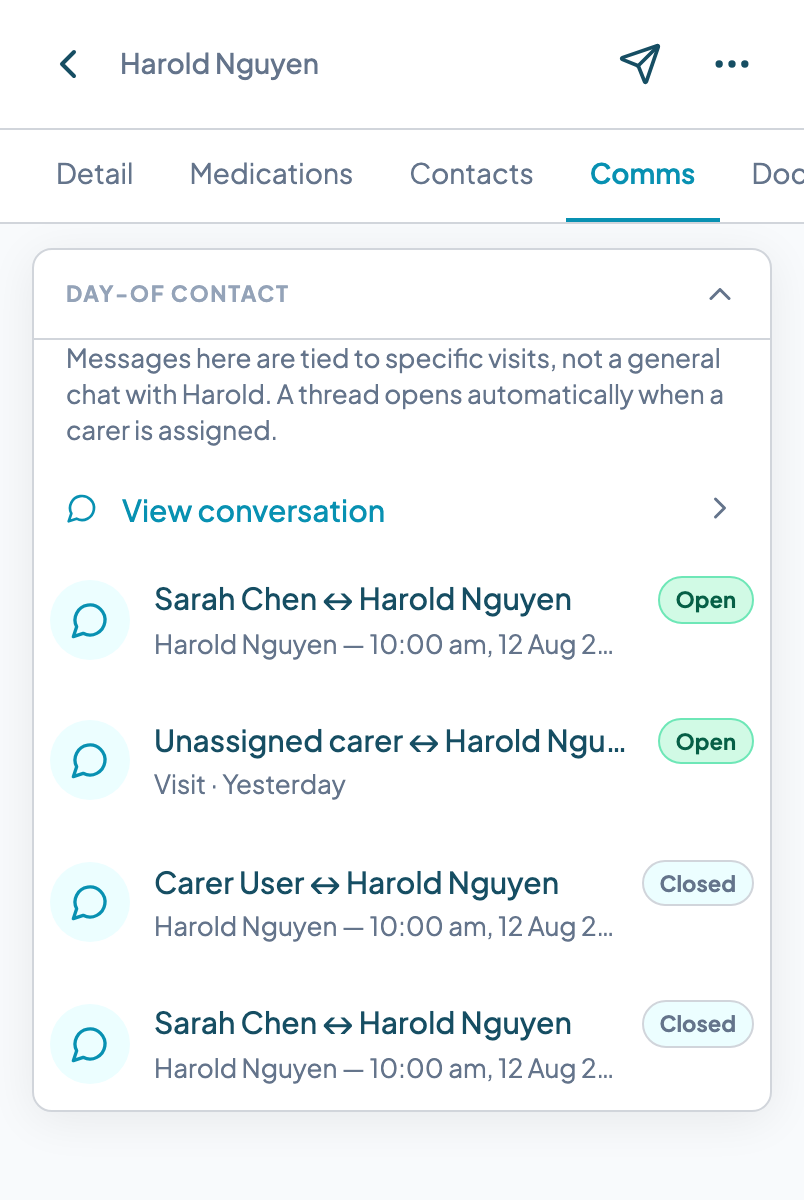
This is the record your team can hand to a coordinator picking up after someone's gone on leave, or pull up if a family member asks what's been communicated. Nothing about it depends on any one person's phone.
A note on opting out
A client (or their nominated contact) can reply STOP at any time to end messaging - Teiro locks the composer on that conversation and records when it happened. They can restart it by replying START. This is a standard requirement for SMS in Australia, not a Teiro-specific setting, so it applies automatically and doesn't need to be turned on.
What this doesn't cover
Client messaging is scoped to day-of contact and coordinator-initiated conversations - it isn't a general chat tool, and it isn't a replacement for phone calls about schedule changes, clinical questions, or anything urgent. Teiro does not route messages to emergency services; what your team does for a genuine emergency should stay in your organisation's own on-call protocol, separate from this channel.
Related articles
Communicating with clients and families
Message clients and their families through Teiro instead of a personal phone - one platform number, no numbers exchanged, and every message logged automatically.
Adding your first customer (participant)
Create a customer record with care plan details, contacts, and service requirements.
How to Set Up Your Team and Rosters in Teiro
A step-by-step guide for new Teiro users: adding your support workers, building your first roster, assigning shifts, and publishing your schedule.