
Email a Report on a Schedule
Set up a report rule so a report emails itself, for example shifts delivered to your bookkeeper every Friday at 5pm.
Overview
A report rule is one sentence: when something happens, send a report, to these people. This guide covers the schedule kind: "Every Friday at 5pm, send shifts delivered to the bookkeeper."
Admins and schedulers can create rules. Carers cannot.
Watch the walkthrough
 1:09
1:09Watch
How to Email Shifts Delivered to Your Bookkeeper Every Friday in Teiro
A scheduler creates a report rule from the Shifts delivered starter: weekly, Friday at 5pm, last week's shifts, sent to the bookkeeper's email address as a secure link that expires in 24 hours. The rule shows its next send time and keeps a run history.
Watch the walkthrough
Step 1: Start a rule
From the Profile menu, open Reports, then Report rules. Tap the + button. A Start from sheet offers:
- Shifts delivered (on a schedule)
- Expiring credentials (on a schedule)
- Services without a note (on a schedule)
- An incident is raised (see Email a report when something happens)
- A service has not started (same guide)
- Blank, to pick any exportable report yourself
Choose Shifts delivered.
Step 2: When
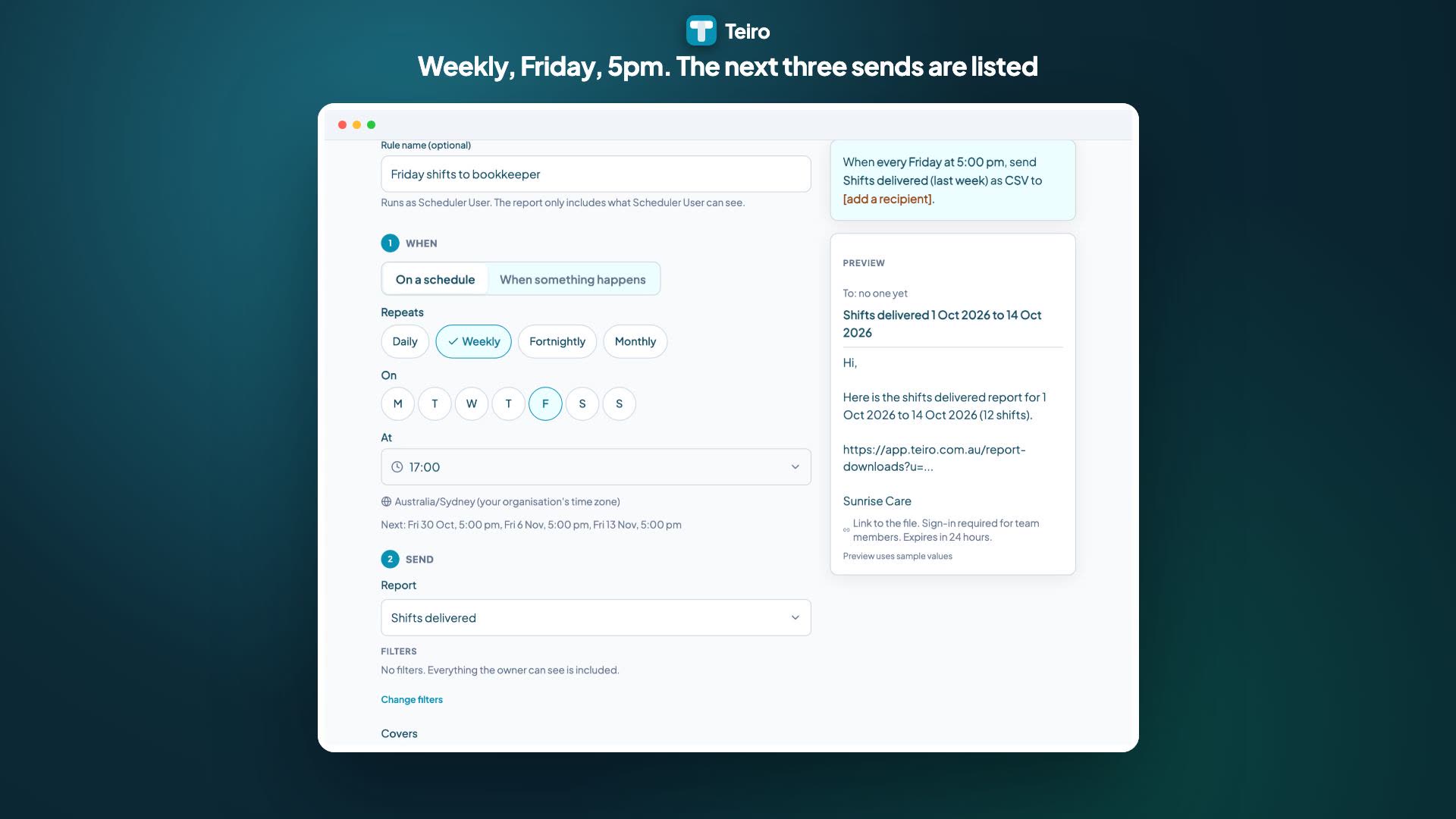
Under 1. When, make sure On a schedule is selected, then choose how often: Daily, Weekly, Fortnightly or Monthly.
- Weekly: tick the day, then set the time.
- Fortnightly: pick the first send date. It repeats every 14 days from there.
- Monthly: pick a day from 1 to 28, or the last day of the month.
Set the time. The timezone is your organisation's and is shown for reference. Teiro lists the next three send times so you can check them.
For our example: Weekly, Friday, 5:00 pm.
Step 3: Send
Under 2. Send, check the report, choose the date range and the file format.
Rules use moving ranges. For a Friday afternoon send, This week covers Monday to that Friday. See Choose a date range that moves.
Step 4: To
Under 3. To, add recipients:
- Team members: choose from your organisation's users.
- Anyone else: type an email address, such as your bookkeeper's, and tap Add.
You can add up to 5 recipients per rule. The whole list is always on screen, with each person tagged Team or External, so check it before you save.
Step 5: The email
Under 4. Email, edit the subject and message. Tap the chips to drop in details such as the organisation name, the report name, the period and the number of rows. The preview below shows the email with sample values, and what the recipient gets: a link, or the file attached.
By default recipients get a secure link that expires in 24 hours. See Links and attachments in report emails.
Step 6: Save
Tap Save rule. The sentence at the top of the screen reads back what you built, for example "Every Friday at 5:00 pm, send Shifts delivered (this week) to 2 recipients."
You can have up to 10 rules in your organisation. Each rule runs with the permissions of the person who owns it, so it only includes what that person can see.
Next steps
- Email a report when something happens
- Links and attachments in report emails
- Pause, renew and check a report rule
Want your Friday report to send itself? Book a demo or sign up free.
Related articles
Email a Report When Something Happens
Set up a report rule that emails when an incident is raised, or when a service has not started by a set time after its start.
Links and Attachments in Report Emails
Report emails carry a secure link that expires in 24 hours. Admins can choose to attach the file instead, after an acknowledgement. Here is what each means.
Pause, Renew and Check a Report Rule
Read the status of your report rules, pause or renew them, and use run history to see exactly what was sent and to whom.
Export a Report to CSV, Excel or PDF
How to turn a Teiro report into a CSV, Excel or PDF file, with your filters and date range applied, and what the row limits and daily limit mean.