
Teiro for carers
New to Teiro? Everything you need for your first shift. This page is the app part of your induction: how to use Teiro on a visit, from signing in to checking out. Your organisation’s own induction, policies and training still apply.
Last updated
Your first shift
1. Install, sign in and set up your phone
- Install Teiro from the App Store or Google Play, or open it in your phone’s browser.
- Sign in with the email your organisation invited, using Google, Microsoft or Apple if that is the account your work email uses, or a password. You only sign in once.
- When Teiro asks you to set a lock for the app, choose face or fingerprint if your phone has it, or set a PIN.
- When your phone asks about notifications, say yes. That is how you hear about shift changes and messages from the office.
Read more: User guide B1: Getting in · Carer app overview
2. Find today's shift and read it before you go in
- Home lists My Shifts Today. The Schedule tab shows the rest of your roster.
- Tap a shift to open it.
- Read Before you go in: allergies, critical alerts, hazards at the client’s home, how to get in, and any plan you have not read yet.
- Then read the Pre shift briefing and the note from the previous visit, so you start knowing what happened last time.
Read more: User guide B2: Your day · B3: Opening a shift · Viewing your jobs
3. Check in
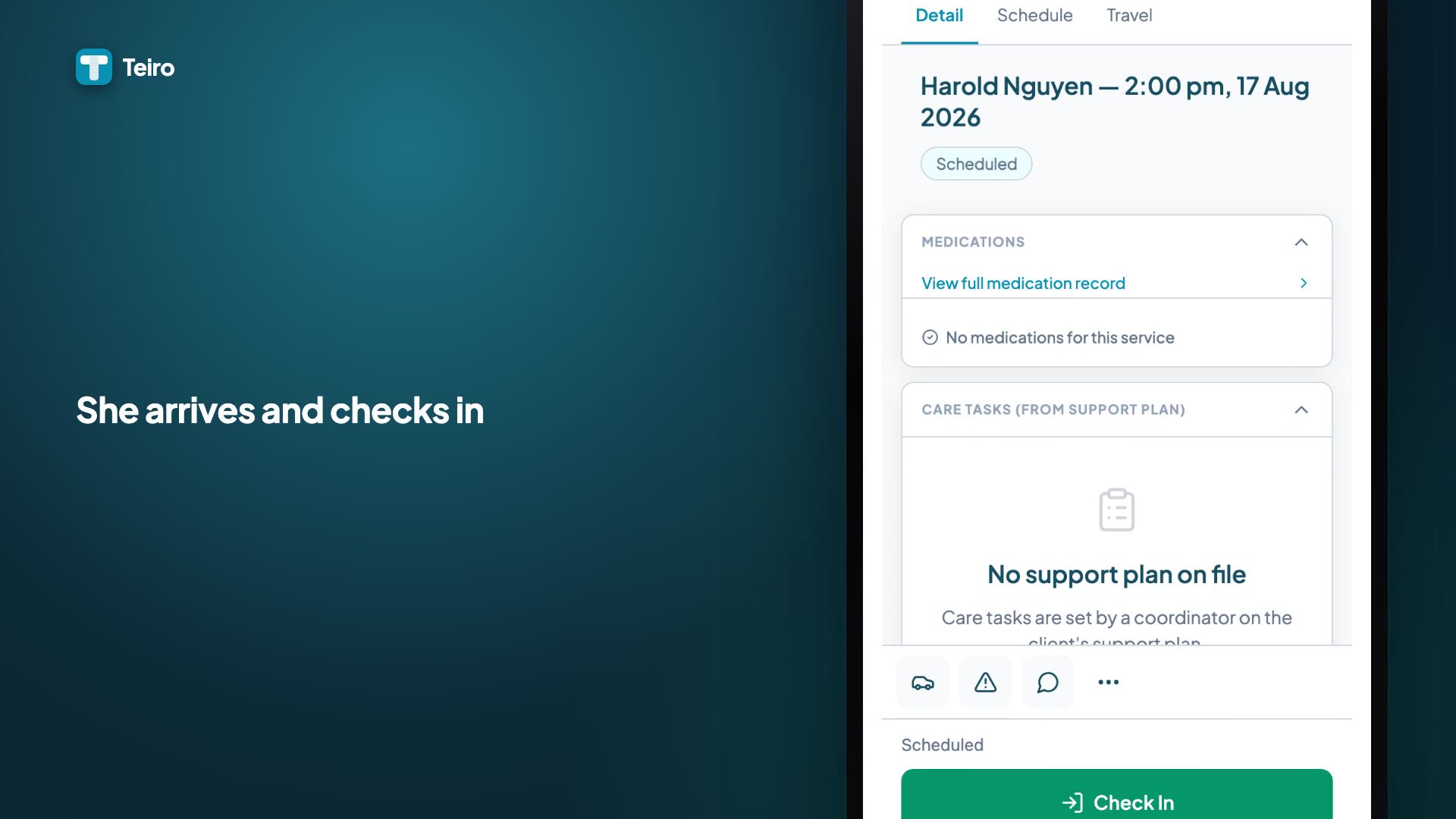
- When you arrive, open the shift and tap Check In.
- An ON SHIFT banner and a live timer appear. The time and place of your check in are recorded on the visit.
- Some organisations turn check in off. If yours has, you will see a single Visit completed action instead.
 0:27
Watch
How to Check In and Out of a Visit in Teiro
A support worker arrives at a visit, checks in from the app, and checks out when the visit ends. The times are recorded against the visit as the attendance evidence billing later depends on.
Watch the walkthrough
Read more: User guide B4: Checking in · Checking in and out of a job
4. During the visit: tasks and the medication record
Care tasks
If the client has a support plan, the tasks for this shift are listed on it. Answer each one as you go: Done, Partly done, Declined by client, Not done or Not applicable today. Anything other than Done needs a short reason. If a task looks wrong, use Suggest a change to these tasks.
Medication record
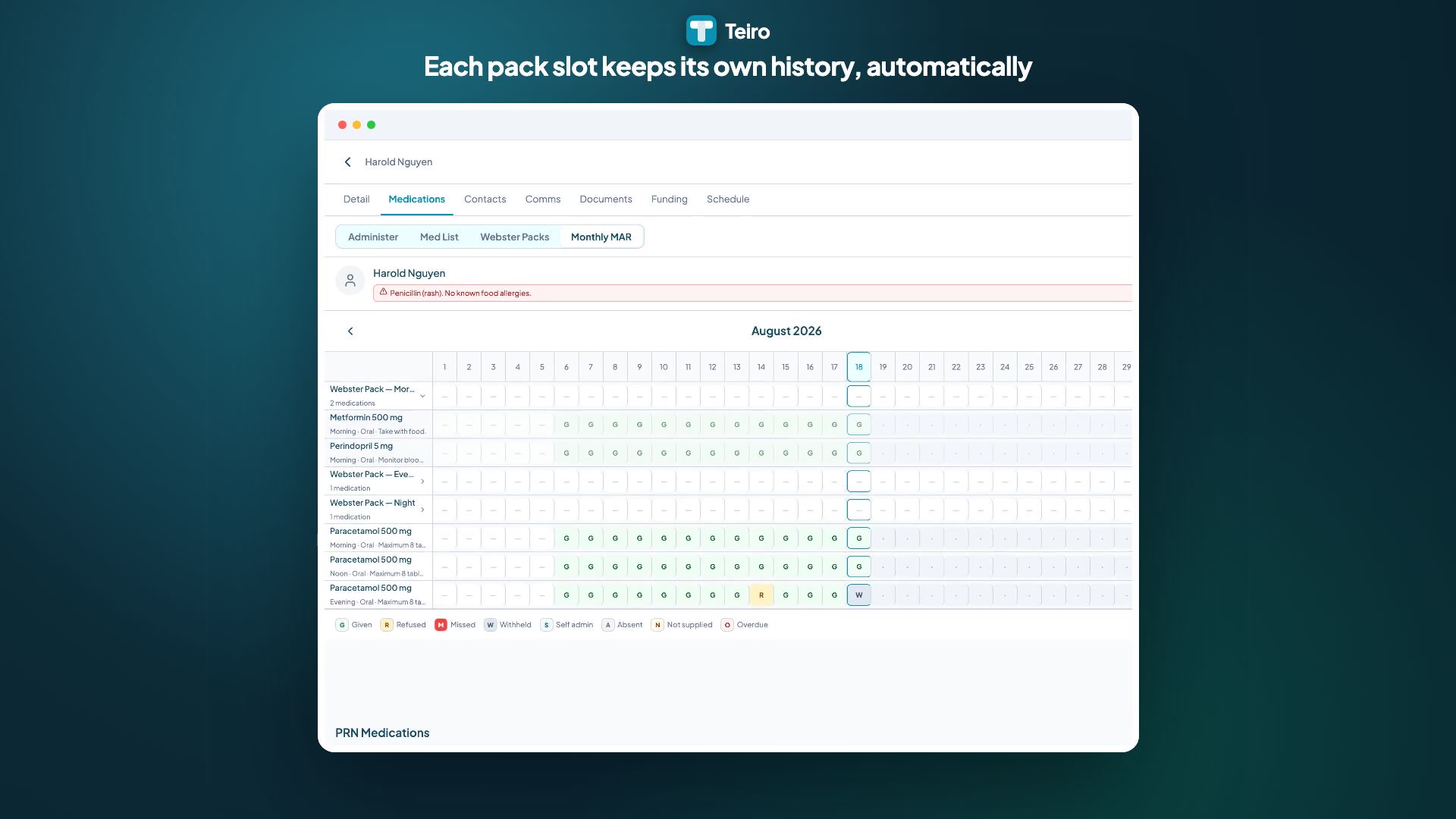
If medication is due on your visit, it is listed on the shift. Select what you are giving, tap Administer, record the outcome and sign. The walkthrough below shows how to record medication in Teiro. It does not show you how to give it. Your organisation’s medication policy and your competency sign-off still apply. If a dose is overdue, call your coordinator or registered nurse before you give it.
 0:36
Watch
A Medication Administration Record Walkthrough in Teiro
A short walkthrough of a medication administration record in Teiro: today's doses grouped by time of day, the client's active medication list, a whole time slot recorded in one batch with a separate signature per medication, and a PRN dose recorded with its trigger and effect.
Watch the walkthrough
Read more: User guide B5: During the visit · B6: Medications · Support plan tasks on a shift · Recording a medication administration
5. Write your note, then check out
- Tap Add a note... at the bottom of the shift. Progress is the everyday type. If nothing needs saying, No concerns is the quick path. You can attach a photo.
- Turn on Follow up if you need someone in the office to act. Tap Post note to save it to the client’s record. An unfinished note is kept as a draft.
- Tap Check Out. Choose Complete now to answer the short checklist, or Finish later and a reminder appears on your Home screen.
Read more: User guide B5: Writing a note · B8: Finishing the visit
Writing good notes
- Write what you saw, did and heard. Use the client’s own words where it matters.
- Turn on Follow up if anything changed or worried you.
- For anything urgent, phone the office now. Do not rely on a note. In an emergency, call 000.
Notes are part of the client’s record, not messages to the office. If you need the office to act, turn on Follow up or phone them.
Your organisation’s policies decide what needs to be escalated, and how quickly.
When something goes wrong
Reporting an incident
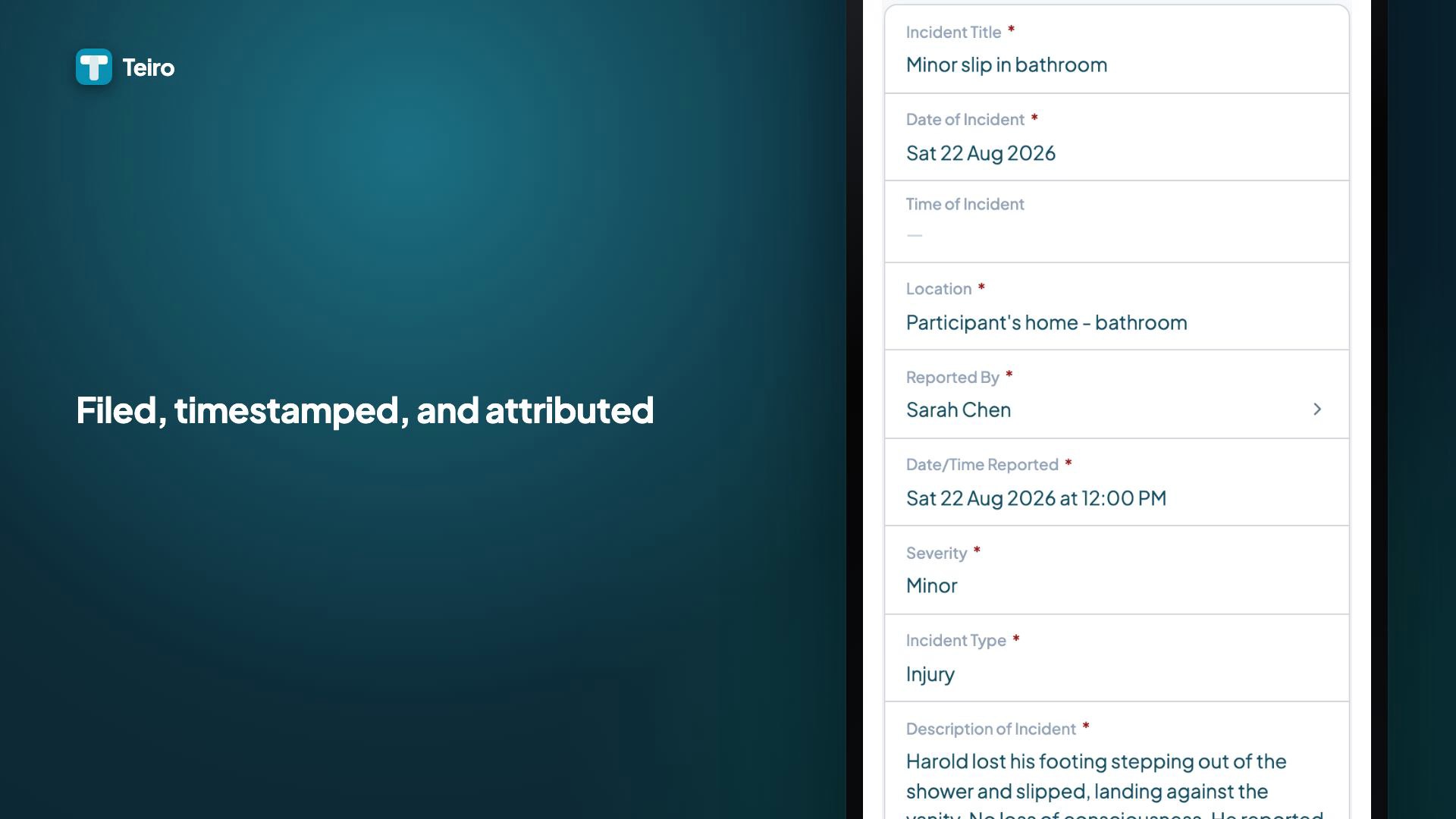
Report it from the visit you are on, using the incident button on the shift. The client and shift are filled in for you. Write what happened, when and where, who was involved, whether anyone was hurt and what you did straight away. The office reviews it after you send it. Your organisation’s incident policy sets what must be reported and how quickly, so follow it. If it is urgent, phone the office now.
 1:18
Watch
Reporting an Incident: Carer Form to Reviewer
How a support worker reports an incident in Teiro from the shift it happened on, with a short facts-only form and the client and shift already filled in, and how the reviewer is told, sees who is assigned, and starts the review by setting severity and whether it is reportable.
Watch the walkthrough
Read more: Submitting incident reports · User guide B5: Reporting an incident
Nobody answers the door
Do not stand there texting the office. Tap Can’t get in? under Check In, choose what happened, add a note for the coordinator and tap Submit. The office is alerted straight away, and the attempt is recorded on the visit.
Read more: User guide B7: If nobody answers
The app won’t work, or there is no signal
Check-ins, check-outs and notes are held on your phone and sent when you have signal again. A note is never thrown away: if it cannot be sent, it comes back as a draft with your words still in it, and you post it again. Keep working with the client.
For anything else, or if the app will not open or will not let you in, phone the office. In an emergency, call 000.
Everything else
- Availability and leave. Managing your availability · Leave requests
- Extra shifts. Open shifts the office offers appear on Home. Accept or decline each one. User guide B10
- Travel. Log kilometres from the shift with the car button. User guide B9
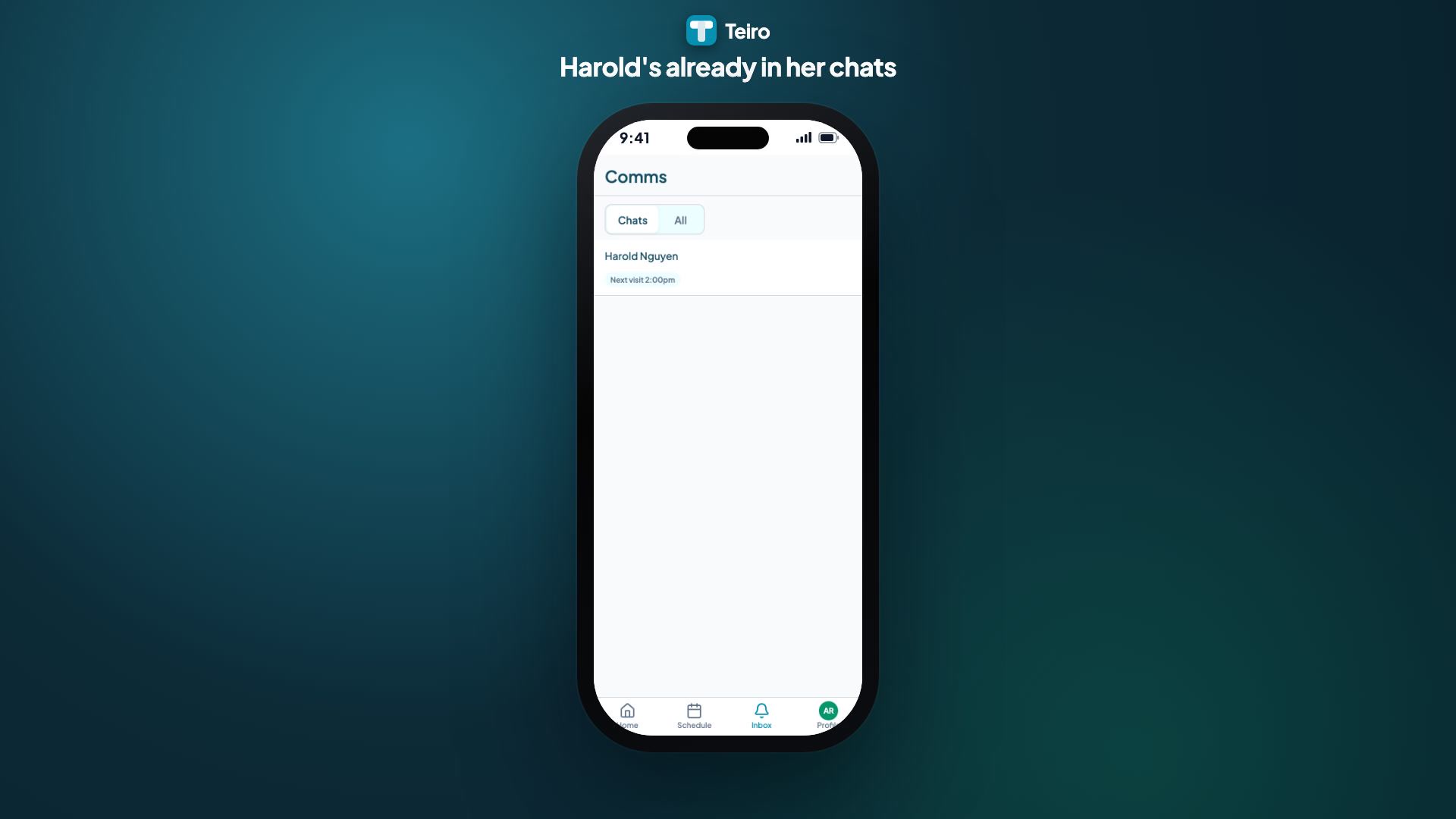
- Messaging a client. You message from inside the visit, and neither side sees the other’s personal number. User guide B11
- Handbooks. Your organisation’s policies, from your Profile menu. User guide B12
 0:29
Watch
How a Support Worker Messages a Client in Teiro
A support worker running late messages the client from the app, without either phone number changing hands. The channel is already open because she is rostered on, the client replies by plain SMS, and she checks in on arrival.
Watch the walkthrough
Want the whole carer app in one read? Part B of the complete user guide covers it.